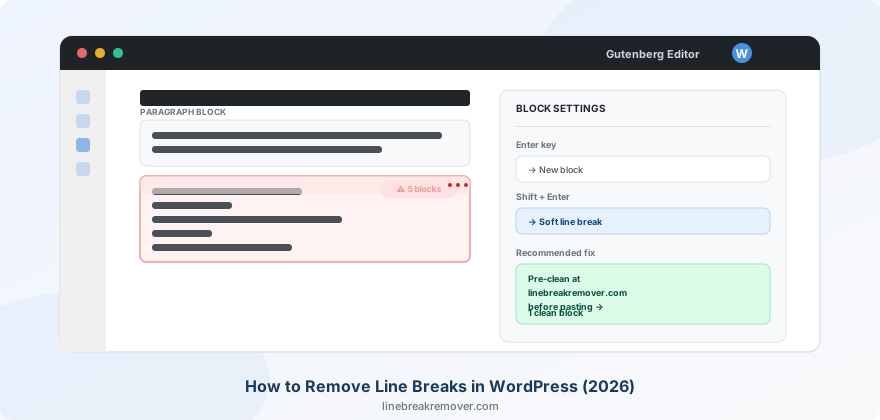
You paste an article draft into WordPress and the paragraph spacing looks wrong — huge gaps between some lines, none between others. Or you write a post directly in the block editor and every time you press Enter, WordPress adds more space than you expected. Sometimes it is the opposite problem: you save a post and all your carefully placed line breaks vanish.
WordPress handles line breaks differently from a plain text editor because of its underlying content filtering system, and the Gutenberg block editor adds another layer of complexity on top. This guide covers every scenario — the Gutenberg block editor, the Classic editor, and the raw HTML/Code view — so you can get consistent formatting every time.
What you will learn
Why WordPress adds or removes line breaks automatically · The wpautop filter explained · 5 methods ranked by editor and situation · Gutenberg-specific fixes (Enter vs Shift+Enter) · The pre-clean habit that prevents formatting problems entirely
Why WordPress messes with your line breaks
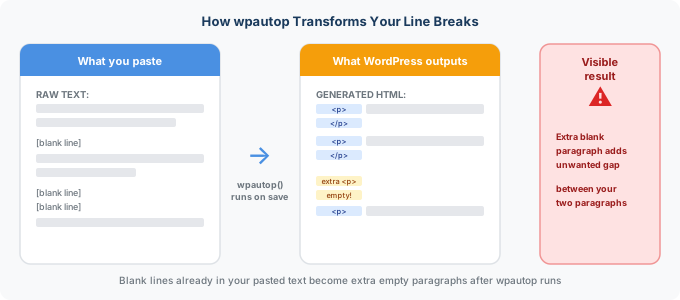
WordPress runs post content through a filter called wpautop. This function automatically converts double line breaks into paragraph tags (<p>) and single line breaks into line break tags (<br>) when your content is displayed on the front end.
This is normally helpful — it means you do not have to manually add HTML tags every time you write a post. But it causes two opposite problems:
WordPress adds too much spacing. If your pasted text already contains blank lines or paragraph breaks — common when pasting from Word, Google Docs, or a PDF — wpautop can wrap each fragment in its own paragraph tag, doubling up the spacing and creating larger gaps than you intended.
WordPress removes line breaks unexpectedly. When switching between the Visual and Code (Text) views, or when certain plugins interact with the content filters, WordPress can strip what it considers redundant or empty tags — including line breaks you deliberately placed.
Gutenberg adds another layer
The block editor (Gutenberg) does not use a single flowing text area — each paragraph is a separate block. This changes how line breaks behave: pressing Enter creates an entirely new block, while Shift+Enter inserts a line break within the current block. Pasted text with embedded line breaks can accidentally split into many separate blocks.
Method 1: Clean text before pasting (fastest — works everywhere)
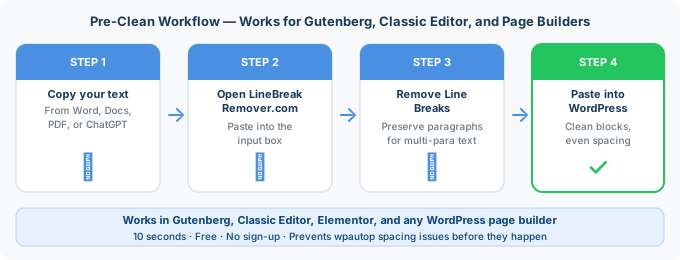
This is the most reliable method for any WordPress editor. Because you clean the text before it ever reaches WordPress, you avoid both the "too much spacing" and "block fragmentation" problems at the same time.
- Copy your text from the source (Word, Google Docs, PDF, ChatGPT, or a website).
- Open linebreakremover.com and paste the text into the input box.
- Click Remove Line Breaks.
- Copy the clean output and paste it into a WordPress paragraph block.
For content with multiple paragraphs, choose the "preserve paragraphs" setting so each paragraph pastes into its own clean block, with the messy in-paragraph line breaks removed.
Best for
Anyone regularly publishing content drafted elsewhere — Word, Google Docs, ChatGPT, or client emails — into WordPress. Works identically in Gutenberg, Classic Editor, and any page builder that accepts pasted text.
Method 2: Use Shift+Enter in the Gutenberg block editor
If you are typing directly in the block editor rather than pasting, understanding the Enter vs Shift+Enter distinction prevents most line break problems from occurring.
- Press Enter to create a new paragraph block — use this for genuinely separate paragraphs, new sections, or when you want the spacing WordPress adds between blocks.
- Press Shift+Enter to insert a soft line break within the current block — use this for things like a poem line, an address, or a caption that needs a visual break without paragraph spacing.
Why this matters for pasting too
When you paste multi-line text into a single Gutenberg block, WordPress interprets each line break according to this same rule — which is why pasted text with lots of line breaks can fragment into many small blocks instead of flowing as one paragraph.
Method 3: Edit the block as HTML for precise control
If a specific block has stray line breaks or unwanted <br> tags, you can edit its raw HTML directly for exact control.
- Click the block with the formatting issue to select it.
- Click the three-dot (More options) menu in the block toolbar.
- Select Edit as HTML.
- Manually remove any stray
<br>tags or unwanted blank lines from the raw markup. - Click the three-dot menu again and select Edit visually to return to the normal view.
<!-- Before: stray br tags from a bad paste -->
<p>This is my paragraph<br>
that got split<br>
into pieces.</p>

<!-- After: cleaned up -->
<p>This is my paragraph that got split into pieces.</p>
Best for
Fixing a single problematic block after the fact, or for users comfortable reading basic HTML. Slower than pre-cleaning for whole-post cleanup, but gives exact control over one block.
Method 4: Disable the wpautop filter (developers & specific post types)
If you consistently need precise control over line breaks — for example, for a custom post type like press releases or legal documents where WordPress's automatic spacing is unwanted — you can disable the wpautop filter for that content.
Using a plugin
The TinyMCE Advanced plugin (Classic Editor) includes an option to control how line breaks and paragraph tags are handled, giving you a settings panel instead of code.
Using a code snippet
Developers can remove the wpautop filter for a specific post type by adding a small function to their theme's functions.php file:
function remove_wpautop_for_press_releases( $content ) {
    if ( is_singular( 'press-releases' ) ) {
        remove_filter( 'the_content', 'wpautop' );
    }
    return $content;
}
add_filter( 'the_content', 'remove_wpautop_for_press_releases', 0 );
Use with caution
Disabling wpautop site-wide will remove automatic paragraph spacing from all your content, not just the post you are troubleshooting. Scope any code changes to a specific post type or template, and always test on a staging site first.
Method 5: Paste as plain text
Most browsers and the Gutenberg editor support pasting without formatting, which strips fonts, colours, and some — but not all — of the hidden characters that cause spacing problems.
- Windows: Ctrl + Shift + V
- Mac: Cmd + Shift + V
After pasting as plain text into a Gutenberg block, you may still need to adjust paragraph breaks manually, since this method removes styling but does not always fix line break structure the way pre-cleaning does.
Limitation
Paste as plain text is a good first step but is not a complete fix for text with embedded hard line breaks from a PDF or a narrow-column source. Combine it with Method 1 for the cleanest result.
Gutenberg vs Classic Editor: what's different
| Aspect | Gutenberg (block editor) | Classic Editor |
|---|---|---|
| Content structure | Discrete blocks, one per paragraph/element | Single flowing text area (TinyMCE) |
| Enter key | Creates a new block | Creates a new paragraph via wpautop |
| Shift+Enter | Soft line break within the block | Soft line break (<br>) within the paragraph |
| Pasting multi-line text | Can fragment into multiple blocks | Flows into one text area, formatting applied on save |
| Raw HTML editing | Per-block via "Edit as HTML" | Whole-document via Text/Code tab |
Which method should you use?
| Your situation | Best fix |
|---|---|
| Pasting a full article from Word, Docs, or a PDF | Method 1 — clean at linebreakremover.com first |
| Typing directly and want to control spacing | Method 2 — Enter vs Shift+Enter in Gutenberg |
| One block has stray <br> tags after a bad paste | Method 3 — Edit as HTML |
| A whole post type needs no automatic spacing | Method 4 — disable wpautop (developer) |
| Quick fix for styling only, not line breaks | Method 5 — paste as plain text (pair with Method 1) |
Frequently asked questions
Why does WordPress add extra paragraph gaps when I paste text?
WordPress runs pasted content through a filter called wpautop, which automatically wraps double line breaks in paragraph tags and adds spacing. If your source text already had blank lines or paragraph breaks embedded, wpautop can double up the spacing, creating larger gaps than intended.
Why did WordPress remove my line breaks after I saved the post?
WordPress's editor filters can strip what it considers redundant line breaks and empty tags when content is saved or when switching between Visual and Code views. This is a known behaviour of the wpautop and content filtering system, and it can be disabled with a plugin or a small code snippet for specific post types.
What is the difference between Enter and Shift+Enter in the Gutenberg editor?
In the Gutenberg block editor, pressing Enter creates a new paragraph block with spacing above and below. Pressing Shift + Enter inserts a soft line break within the same paragraph block, with no added spacing — similar to a manual line break in Word.
How do I paste text into WordPress without formatting issues?
The most reliable method is to clean your text before pasting using a tool like linebreakremover.com, which strips line breaks and hidden characters from PDFs, websites, or Word documents. Paste the cleaned text into a Gutenberg paragraph block for consistent results.
How do I remove line breaks in the WordPress Code editor (HTML view)?
Switch a paragraph block to the Code editor view (three-dot menu → Edit as HTML), then manually remove any stray <br> tags or extra blank lines in the raw HTML. This gives precise control but is slower than pre-cleaning the text before pasting.
Does the WordPress Classic Editor handle line breaks differently from Gutenberg?
Yes. The Classic Editor uses the TinyMCE editor and the wpautop filter to convert line breaks into paragraph and <br> tags automatically within one flowing text area. Gutenberg uses discrete blocks instead, so each paragraph is a separate block rather than text flowing through a single content area — which changes how pasted line breaks behave.
Conclusion: pre-clean before you paste into WordPress
WordPress's automatic formatting — the wpautop filter and Gutenberg's block structure — is designed to save you from manually adding HTML tags, but it assumes your pasted text does not already contain its own line breaks. When it does, spacing and block-fragmentation problems follow.
The fastest fix for almost every situation is the same one-step habit: clean your text at linebreakremover.com before pasting into any WordPress editor. It takes ten seconds and works whether you are publishing in Gutenberg, the Classic Editor, or a page builder. For related guides, see how to clean up text copied from a website and fix line breaks when copying from ChatGPT.