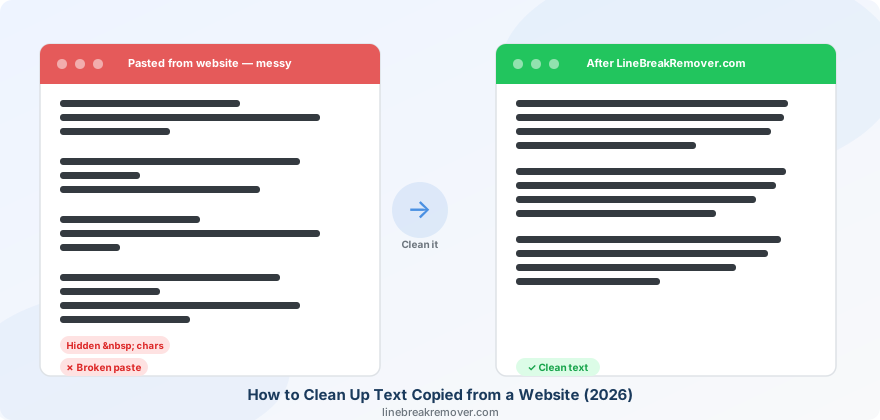
You copy a paragraph from an article, a blog post, or a product page. You paste it into your document, email, or CMS — and instead of clean text you get a fragmented mess. Lines break in random places. Extra blank lines appear between every sentence. Strange invisible characters make your spacing behave oddly. Bullet points collapse or multiply.
This is one of the most common productivity frustrations in 2026, and it happens to almost everyone who works with content from the web. The good news: there are fast, reliable fixes — and once you understand why it happens, preventing it takes just one extra step.
What you will learn
Why websites produce messy text when you copy · What hidden characters actually are · 5 methods to clean web copy ranked by speed · Which method works best for Word, Google Docs, Notion, and email · A one-step habit that prevents the problem entirely
Why copying text from a website creates a mess
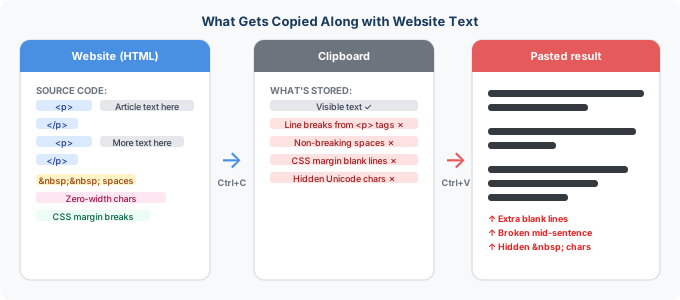
When you copy text from a website, you are not copying just the words you can see. Your browser copies a rich HTML representation of everything you selected — including the invisible structural elements that make the page look the way it does.
Those structural elements include things that do not belong in a plain-text document. The most common culprits are:
Line breaks from HTML paragraph and div tags
Websites wrap text in HTML elements like <p>, <div>, and <span>. Each block-level element (like a paragraph or a div) ends with an implicit line break. When your browser copies the text, it translates these elements into actual line break characters. Paste that into Word or Notion and every paragraph tag becomes a new line — even if the original page looked like a single flowing paragraph.
Non-breaking spaces ( )
Web developers use non-breaking spaces ( ) to prevent text from wrapping at inconvenient points or to create visual spacing. These paste as invisible characters that look like regular spaces but behave differently — they refuse to collapse, they break spell-checkers, and they can cause alignment issues in spreadsheets or databases. You often cannot see them, but they are there.
Extra blank lines from CSS margins
Browsers interpret CSS margin spacing between HTML elements as empty lines when converting to plain text for the clipboard. A paragraph with margin-bottom: 20px may paste as two blank lines between paragraphs rather than one — creating the double-spaced appearance that plagues pasted web content.
Hidden Unicode characters
Some websites include invisible Unicode characters — zero-width spaces, soft hyphens, or byte-order marks — that survive copy-paste and cause subtle problems: words that appear correct but fail in searches, strings that break code, or text that wraps unexpectedly.
The result
All of this means that text pasted from a website into a document, CMS, email, or spreadsheet almost never arrives clean. The more complex the page's HTML structure, the messier the paste result.
Method 1: Clean with LineBreakRemover.com before pasting (fastest)
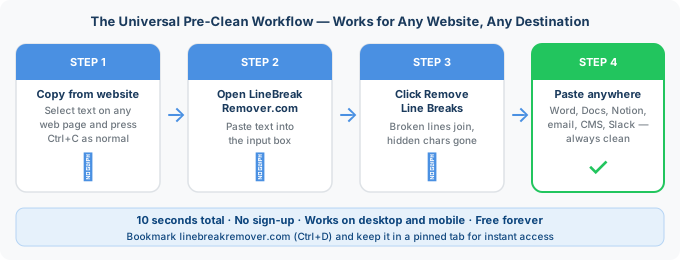
This is the most reliable method and takes under ten seconds. Because you clean the text before it ever reaches your destination app, you get consistent results regardless of whether you are pasting into Word, Google Docs, Notion, a CMS, an email, or a spreadsheet.
- Copy text from the website as normal.
- Open linebreakremover.com in your browser.
- Paste the copied text into the input box and click Remove Line Breaks.
- Copy the clean output and paste it into your destination.
Best for
Anyone who regularly copies content from websites into documents, emails, or CMS platforms. The ten-second pre-clean step becomes automatic within a week — you stop thinking about it the same way you stop thinking about Ctrl+C and Ctrl+V.
Which setting to use in LineBreakRemover.com
| What you copied | Recommended setting | Result |
|---|---|---|
| Article body / blog post | Replace with space | All broken lines join into flowing paragraphs |
| Web page with multiple paragraphs | Remove line breaks, preserve paragraphs | Each paragraph stays separate, extra breaks removed |
| Bullet list or numbered list | Keep line breaks | Preserves list structure intentionally |
| Table data or spreadsheet content | Replace with space or comma | Clean data ready for import |
Method 2: Paste as plain text (Ctrl+Shift+V)
Most modern apps support a "paste as plain text" shortcut that strips rich formatting when you paste. This is faster than the pre-clean method but less thorough — it removes fonts, colours, and bold/italic, but it does not remove line breaks or non-breaking spaces.
- Windows / Linux: Ctrl + Shift + V
- Mac: Cmd + Shift + V
- Google Docs: Ctrl + Shift + V (dedicated paste without formatting)
- Microsoft Word: Right-click → Paste Special → Unformatted Text
- Notion: Ctrl + Shift + V strips rich styling but line breaks still create new blocks
Limitation
Paste as plain text is useful for removing fonts and colours, but it does not fix broken line breaks or non-breaking spaces. If you still have choppy lines after using this shortcut, pair it with Method 1 — pre-clean first, then paste.
Method 3: The Notepad detour (Windows) / TextEdit trick (Mac)
This is the classic manual workaround that has existed since the early web. It works because plain text editors strip all HTML formatting from the clipboard — they only accept raw text.
On Windows
- Copy text from the website.
- Open Notepad (search for it in the Start menu).
- Paste with Ctrl + V — Notepad accepts only plain text, stripping all formatting.
- Select all (Ctrl + A), copy (Ctrl + C), and paste into your destination.
On Mac
- Copy text from the website.
- Open TextEdit and go to Format → Make Plain Text first.
- Paste with Cmd + V.
- Select all, copy, and paste into your destination.
Honest limitation
The Notepad detour strips HTML formatting but keeps line breaks. You still end up with broken lines — just without the bold and colours. For truly clean text, follow up with Method 1 to remove the remaining line breaks.
Method 4: Find and Replace in Word or Google Docs
If you have already pasted web content into Word or Google Docs and need to clean up the line breaks after the fact, Find and Replace gives you precise control.
In Microsoft Word
- Press Ctrl + H to open Find and Replace.
- Click More → Special and choose Paragraph Mark (
^p) in the Find What field. - Type a single space in the Replace With field.
- Click Replace All.
This joins all broken lines into flowing paragraphs. Run it a second time if double paragraph breaks remain. For a full guide see how to remove line breaks in Microsoft Word.
In Google Docs
- Press Ctrl + H to open Find and Replace.
- Enable Regular expressions by checking the box.
- In Find, type
\n. In Replace with, type a space. - Click Replace All.
See the full guide on removing line breaks in Google Docs for more detail.
Best for
Users who are already inside Word or Google Docs and need to fix content that was pasted without pre-cleaning. Good for one-off cleanup on an existing document.
Method 5: Use a browser extension for automatic clean copy
If you copy text from websites dozens of times a day, a browser extension that automatically strips formatting on copy can save significant time. These extensions intercept the clipboard at copy time — so by the time you paste, the text is already clean.
Popular options for Chrome and Edge include extensions that convert copied text to plain text automatically, remove line breaks on copy, or let you choose between rich and plain copy with a keyboard shortcut. Search the Chrome Web Store for "plain text copy" or "clean copy" to find current options — the landscape changes regularly.
Trade-off
Extensions that always strip formatting will also strip formatting you sometimes want to keep — like bold text in a quote or table structure. Choose one that offers toggle control so you can switch between clean and rich copy as needed.
Which method works best for each destination?
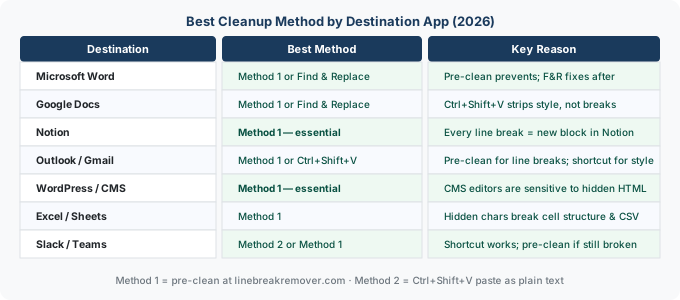
| Destination | Best method | Why |
|---|---|---|
| Microsoft Word | Method 1 or Method 4 | Pre-clean prevents problems; Find & Replace fixes them after |
| Google Docs | Method 1 or Method 4 | Same as Word; Ctrl+Shift+V also works for styling but not line breaks |
| Notion | Method 1 (essential) | Notion creates a new block per line break — pre-cleaning is the only reliable fix |
| Email (Outlook / Gmail) | Method 1 or Method 2 | Pre-clean for line breaks; Ctrl+Shift+V for styling only |
| CMS / WordPress | Method 1 | CMS editors are sensitive to hidden HTML — pre-cleaning gives the cleanest starting point |
| Excel / Sheets | Method 1 | Hidden characters and line breaks break cell structure and CSV parsing |
| Slack / Teams / Chat | Method 2 or Method 1 | Ctrl+Shift+V works for most styling; pre-clean if line breaks are still present |
The one habit that prevents all of this
Every method above is a fix for a problem that has already happened. The most efficient approach is a single habit change that stops the problem before it starts:
Never paste directly from a website into your destination app. Always paste through linebreakremover.com first. The flow becomes: copy from website → clean at linebreakremover.com → paste into destination. That extra step takes ten seconds and permanently eliminates line break and hidden character problems from your workflow.
Bookmark linebreakremover.com now (Ctrl + D or Cmd + D) and open it in a pinned tab. Within a week it becomes as automatic as copying itself — and you stop fighting paste formatting entirely.
Frequently asked questions
Why does text copied from a website have extra line breaks?
Websites use HTML elements like paragraph tags and div blocks to structure content. When you copy text, your browser also copies the line breaks these elements create — even though they are invisible on the page. The result is extra line breaks and blank spaces when you paste into another app.
What are non-breaking spaces and why do they appear when I paste web text?
Non-breaking spaces ( ) are a special HTML character websites use to prevent text from wrapping at certain points. When you copy text containing them, they paste as invisible characters that look like normal spaces but behave differently — causing alignment issues and refusing to collapse like regular spaces.
Does Ctrl+Shift+V really remove all formatting from copied web text?
Ctrl + Shift + V strips rich formatting like bold, colours, and fonts — but it does not remove line breaks or non-breaking spaces. You still end up with the same broken lines, just without the styling. For truly clean text, pre-clean with linebreakremover.com before pasting.
What is the Notepad trick for cleaning copied web text?
Pasting into Windows Notepad (or Mac TextEdit in plain text mode) strips all HTML formatting and styles. However, Notepad keeps line breaks — so you will still have choppy lines. Use it to remove styling, then follow up with linebreakremover.com to remove the remaining line breaks.
How do I clean up text copied from a website on mobile?
On mobile, open linebreakremover.com in your browser, paste the copied text, tap Remove Line Breaks, and copy the clean result. It works on iOS and Android and takes under ten seconds.
Why does web copy paste differently into Word vs Google Docs vs Notion?
Each app handles the clipboard's HTML content differently. Word tries to preserve original web formatting. Google Docs strips most styling but keeps line structure. Notion creates a new block for every line break. Pre-cleaning the text before pasting gives consistent results across all three. For Notion specifically, see our full guide on removing line breaks in Notion.
Conclusion: clean before you paste, every time
Messy text from websites is not a bug — it is the inevitable result of copying HTML-structured content into plain-text destinations. The underlying cause will not change as long as websites use HTML and apps expect plain text.
What can change is your habit. Pre-cleaning at linebreakremover.com before pasting takes ten seconds and eliminates the problem permanently. Build that one habit and copy-paste frustration from websites disappears for good. For related guides, see how to fix line breaks when copying from ChatGPT and why PDFs create line breaks when copying.