Have you ever copied text from a PDF, an email, or a website only to find your document packed with frustrating line breaks at the end of practically every line? If so, you are definitely not alone. This annoying formatting problem wastes so much time for workers, students, and content creators all over the world. For users who rely on cloud software, we also have a dedicated guide on how to remove line breaks in Google Docs.
Here’s the good news: you have two excellent solutions ready to go. You can use free online tools designed specifically for this job, or you can use Microsoft Word’s powerful Find & Replace feature.
This full guide will compare both methods to help you remove line breaks quickly and efficiently. Whether you love the ease of online tools or the control of Word’s built-in features, you’ll find step-by-step instructions, real-life examples, and expert advice to clean up your text in seconds. By the time you finish reading, you’ll know exactly which method is the best fit for you.
Understanding Line Breaks: What Are They and Why Do They Appear?
Before we learn how to fix them, let's figure out what line breaks are and why they mess up your documents.
Types of Line Breaks (Paragraph Marks vs Manual Line Breaks)
Not all line breaks are the same. Understanding the difference helps you choose the right removal method.
Paragraph Breaks (Hard Returns): These are what happens when you press the Enter key in most programs. In Microsoft Word, they use the special code ^p. They look like the paragraph symbol (¶) if you turn on the "Show/Hide" formatting marks. Paragraph breaks signal the end of one paragraph and the start of a new one.
Manual Line Breaks (Soft Returns): These are also called soft returns, and you insert them by pressing Shift + Enter. In Word, they use the special code ^l (that's a lowercase L). They appear as a bent arrow symbol (↵). These breaks just move the text to a new line without actually starting a new paragraph.
Why This Matters: When you copy text from PDFs, emails, or websites that have narrow columns, you often get unwanted paragraph or line breaks at the end of each visual line—even when the sentence is still going. This makes your text look choppy and hard to read, forcing you to clean it up manually. What a pain!
Common Causes of Unwanted Line Breaks
Knowing where these pesky breaks come from helps you prevent them and fix them better:
- PDF Text Extraction: PDFs format text in columns that have a fixed width. When you copy this text, every visual line becomes a separate line in your document, creating breaks right in the middle of sentences.
- Email Formatting: Many email programs automatically insert line breaks after a certain number of characters (usually 72–80 letters) to make sure they look readable across different email systems.
- Web Content: Websites use CSS to handle how things look. When you copy the content, the hidden HTML structure might include hard-coded line breaks that come over to your document.
- Scanning or OCR Software: Tools that turn images into text (Optical Character Recognition) sometimes add extra line breaks when they convert the text.
- Different Operating Systems: Text files created on different systems (like Windows versus Mac or Linux) use different characters for line breaks, which can cause weird formatting issues when you move them.
Quick Comparison: Online Tools vs Word Find & Replace
Let's look at a high-level comparison right away to help you quickly decide which method is best for your current situation.
When to Use Online Line Break Removal Tools
These tools are best for:
- Fast, one-time text cleanup jobs.
- People who don't have Microsoft Word installed.
- Users on mobile devices (phones or tablets).
- Simple line break removal that doesn't need complicated formatting.
- Processing text from lots of different places quickly.
- Times when you need results right away, without having to learn new technical steps.
When to Use Word Find & Replace Method
This method is best for:
- People who already work inside Microsoft Word.
- Complex documents that require you to remove line breaks selectively.
- Situations where you need advanced matching using wildcards (like finding patterns).
- Work environments where you are offline.
- Processing many documents at once (batch processing).
- Keeping specific document formatting and styles.
Side-by-Side Comparison Table
| Feature | Online Tools | Word Find & Replace |
|---|---|---|
| Setup Required | None – instant access | Requires Microsoft Word |
| Cost | Free | Requires Word license |
| Internet Needed | Yes | No |
| Learning Curve | Super simple (paste & click) | Moderate (must learn codes) |
| Speed | Instant | Instant |
| File Size Limits | Often 10–50MB max | No practical limits |
| Formatting Control | Basic | Advanced |
| Offline Use | No | Yes |
| Mobile Friendly | Yes | Limited |
| Preserve Paragraphs | Yes (most tools) | Yes (with proper technique) |
| Advanced Options | Limited | Extensive (wildcards) |
| Privacy/Security | Data sent to server | Processed locally |
| Best Use Case | Quick cleanup tasks | Professional document work |
Method 1: Using Online Line Break Removal Tools
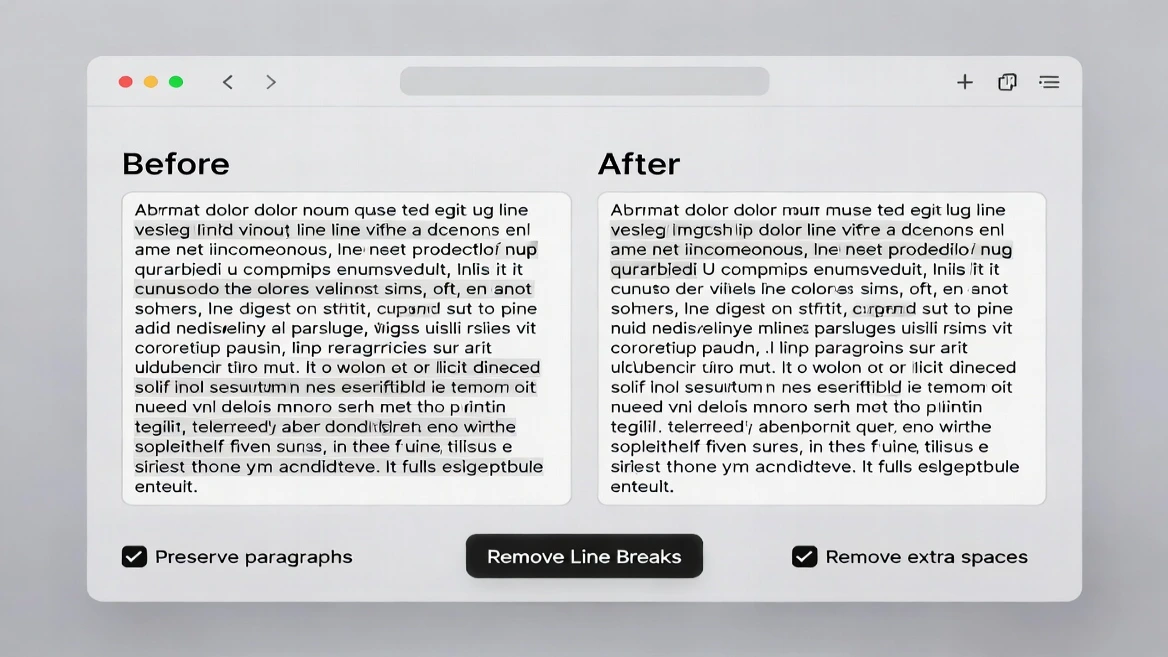
Online line break removal tools are the easiest way to clean up your text super fast. Let's look at the best options and how to use them effectively.
Top 5 Online Line Break Removal Tools
Based on how well they work, their reliability, and how easy they are to use, these are the leading online tools for getting rid of line breaks:
-
TextFixer Remove Line Breaks
- Removes line breaks while keeping paragraph breaks.
- Option to remove all breaks or keep the double breaks.
- Clean interface with instant results.
- No sign-up required.
-
ConvertCase Remove Line Breaks
- Part of a larger text formatting toolkit.
- Keeps your paragraph structure safe automatically.
- Simple copy-paste setup.
- Has other text changing options available.
-
OnlineTextTools Remove Line Breaks
- Works right in your browser (no server processing).
- Multiple modes for removal.
- Options to clean up extra blank spaces (whitespace).
- Processing happens as you type.
-
TextCleaner Line Break Remover
- An all-in-one text cleaning solution.
- Customizable removal options.
- Includes find and replace features.
- Removes line breaks and extra spaces at the same time.
-
PineTools Remove Line Breaks
- Keeps paragraphs safe (double line breaks).
- Option to add your own custom separators.
- Simple process that takes three clicks.
- Works great on mobile phones.
Step-by-Step Guide to Using Online Tools
Here is a general process that works with most online line break removal tools:
- Step 1: Copy Your Text
Select the text that has the unwanted line breaks from your source (PDF, email, website, etc.). Press Ctrl+C (Windows) or Cmd+C (Mac) to copy it. - Step 2: Open the Online Tool
Go to the line break removal tool you chose. Most tools load immediately without needing you to register. - Step 3: Paste Your Text
Click inside the main input box. Press Ctrl+V (Windows) or Cmd+V (Mac) to paste your text. The text will show up with all those problem line breaks visible. - Step 4: Pick How You Want to Remove Them
Most tools give you choices like:- Remove all line breaks: This turns everything into one long, continuous line of text.
- Remove line breaks, preserve paragraphs: This keeps the spacing you intentionally put between paragraphs (this is recommended for most people).
- Replace line breaks with custom text: Useful if you need to create lists separated by commas or special formats.
- Step 5: Process the Text
Click the button that says "Remove Line Breaks," "Clean Text," or "Convert." The processing happens instantly (usually in less than 1 second). - Step 6: Copy the Result
The cleaned-up text appears in the output box. Click the "Copy" button or manually select and copy the result. Paste it into your final document. - Step 7: Check and Adjust
Look over the result to make sure your important paragraph breaks were kept where you needed them. If it’s not perfect, try a different removal option or add manual spacing back in.
Pros and Cons of Online Tools
Advantages:
- Zero setup time: You don't need to install or set up any software.
- Universal access: Works on any device that has an internet browser—Windows, Mac, Linux, iOS, Android.
- No learning curve: Simple paste-and-click interface that anyone can use.
- Fast results: Instant processing for most amounts of text.
- Free to use: No license or subscription costs.
- Multiple options: Many tools offer extra features for cleaning up text.
- Mobile-friendly: You can clean up text right on your smartphone or tablet.
Disadvantages:
- Internet dependency: You need an active internet connection to use them.
- File size limitations: Most tools limit how much text you can input (usually 10–50MB).
- Privacy concerns: Your text is sent to outside servers (though most good tools promise they don't store the data).
- Limited formatting control: They can't handle complex formatting needs specific to documents.
- No bulk processing: You must clean up documents one by one.
- Basic features only: Cannot do advanced pattern matching or conditional changes.
Method 2: Microsoft Word Find & Replace Method
If you regularly work in Microsoft Word, the built-in Find & Replace feature offers powerful ways to remove line breaks with amazing control.
Understanding Word's Special Characters (^p and ^l)
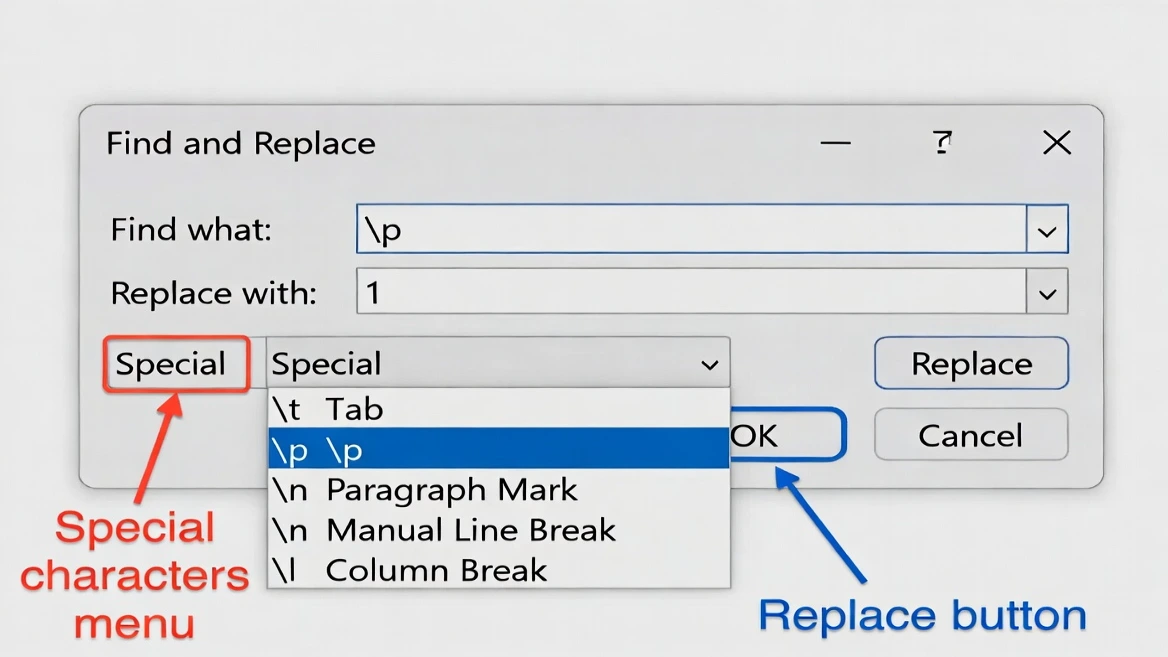
Microsoft Word uses special codes in the Find & Replace box to find things you can't type normally, like formatting elements:
- ^p (Paragraph Mark): Finds hard returns created by pressing Enter. This is the break you will remove most often. The "p" stands for "paragraph".
- ^l (Manual Line Break): Finds soft returns created by pressing Shift+Enter. Make sure you use a lowercase "L" (not the number 1). This represents a line break that doesn't start a new paragraph.
Other Useful Codes:
^t= Tab character^w= Whitespace (any white space)^013= Another code for paragraph mark (used with wildcards)^n= Column break^m= Page break
Pro Tip: You don't have to memorize these codes! In the Find & Replace box, click "More" and then "Special" to see a full list of all the formatting characters you can search for.
Step-by-Step Tutorial: Remove Line Breaks in Word
Let's walk through the full process of removing line breaks using Word's Find & Replace feature:
Basic Line Break Removal:
- Step 1: Open Your Document
Open the Word document that contains the unwanted line breaks. Press Ctrl+A to select all the text (or just select the specific section you want to fix). - Step 2: Access Find & Replace
Press Ctrl+H (Windows) or Cmd+H (Mac) to open the Find and Replace dialog box. Alternatively, go to the Home tab → Editing group → Replace. - Step 3: Show Formatting Marks (Optional but Helpful)
Click the paragraph symbol (¶) button on the Home tab. This makes your line breaks visible so you can clearly see what you are working with. - Step 4: Enter Search Code
In the "Find what" box, type:^pto find paragraph breaks (the most common situation).^lto find manual line breaks. - Step 5: Enter Replacement
In the "Replace with" box:
Type a single space if you want to join lines with a space between the words.
Leave it blank if you want to remove the breaks completely.
Type^pif you want to turn manual line breaks into proper paragraph breaks. - Step 6: Execute Replacement
Click "Replace All" to change every instance at once. Or click "Find Next" and then "Replace" to check each change one by one (safer for very important documents). - Step 7: Verify Results
Review your document to make sure the changes look right. Use Ctrl+Z to undo the action if necessary.
Preserving Paragraph Breaks While Removing Line Breaks:
Here’s a smart trick to remove unwanted single line breaks while keeping the paragraph spacing you meant to keep:
- In Find & Replace, find
^p^p(two paragraph marks) and replace them with a temporary marker likeXXXor###. - Find
^p(a single paragraph mark) and replace it with a space or nothing. - Find your placeholder
XXXand replace it with^p^pto bring back the correct paragraph breaks.
This three-step process removes all the single line breaks while keeping the double line breaks that separate your paragraphs.
Advanced Word Techniques for Complex Scenarios
For power users, Word gives you advanced options using wildcards and pattern matching:
Using Wildcards for Conditional Replacement:
In Find & Replace, click "More" and then check "Use wildcards." Now you can use pattern matching:
([a-z])^13= Find paragraph marks that appear right after lowercase letters.^13([A-Z])= Find paragraph marks that appear right before capital letters.[!.?!]^13= Find paragraph marks that are not preceded by punctuation.
In the "Replace with" box, use \1 to stand for the character that was found.
Example Use Case: Let's say you have text where lines break in the middle of sentences, but you want to keep the breaks that appear after periods. You can use the wildcard pattern ([a-z])^13 to find only breaks after lowercase letters (mid-sentence), and then replace it with \1 (the found letter plus a space).
Removing Specific Line Break Patterns:
- Find line breaks that are followed by specific text.
- Remove breaks only in certain sections.
- Keep breaks only at the end of specific types of paragraphs.
Pros and Cons of Word Method
Advantages:
- Complete offline functionality: You don't need the internet once Word is installed.
- Advanced control: Powerful pattern matching and conditional replacement.
- Unlimited document size: Can process huge documents without issue.
- Preserves formatting: Keeps your fonts, styles, and other document formatting safe.
- Batch processing: You can use macros to process many documents quickly.
- Privacy: All processing happens locally on your own computer.
- Integration: Works smoothly within your existing Word workflow.
- Undo capability: It’s easy to reverse changes using Ctrl+Z.
Disadvantages:
- Requires Microsoft Word: Not usable for people without a Word license.
- Learning curve: You must understand the special character codes.
- Not mobile-friendly: Functionality is limited or non-existent on mobile devices.
- Platform-specific: Mainly designed for desktop computer use.
- Initial complexity: Can feel overwhelming for people who are just starting out.
- Risk of errors: Using the wrong codes can produce unexpected results.
Special Scenarios and Solutions
Different text sources create unique line break challenges. Here’s how to handle specific situations.
Removing Line Breaks from PDF Text
Copying text from a PDF creates particularly stubborn line break problems:
Why PDFs Are Problematic:
PDFs store text in fixed positions, not as flowing text. Every visual line is treated as a separate entity, which creates breaks mid-sentence when you copy the text.
Best Solution:
- For simple PDFs: Use online line break removal tools immediately after copying the text.
- For complex PDFs: Copy the text to Word, then use Find & Replace with the three-step method (replace
^p^pwith a placeholder, then^pwith a space, then restore the placeholder to^p^p). - For frequent PDF work: Think about using OCR software with better text extraction, like Adobe Acrobat Pro or specialized PDF converters.
Pro Tip: Before copying from a PDF, check if the PDF allows text selection. If the text looks like images, you will need OCR software first.
Handling Email and Website Copy-Paste Issues
Email programs and websites often insert line breaks after a specific number of characters:
Email Text:
Many email clients insert breaks every 72–80 characters for better compatibility.
Solution: Copy the email text into an online tool or use Word's Find & Replace to remove ^p breaks. For Outlook users, Word integration sometimes allows direct Find & Replace inside the email composition window.
Website Content:
Websites use CSS for visual formatting that doesn't transfer when you copy.
Some sites include hidden HTML line break tags (<br>) that turn into hard returns.
Solution: Paste the content into Notepad first to strip away the HTML formatting, and then paste that clean text into Word or an online tool.
Mobile Device Solutions
Removing line breaks on smartphones and tablets requires slightly different approaches:
Mobile-Friendly Online Tools:
Most online line break removal tools work great on mobile browsers:
- TextCleaner, ConvertCase, and PineTools all have designs that adapt well to mobile screens.
- Process: Copy text → Open tool in mobile browser → Paste → Process → Copy result.
Mobile Word Apps:
Microsoft Word mobile apps (iOS/Android) include the Find & Replace feature.
Access this via the Edit menu → Find → Replace tab.
Enter special characters just like the desktop version: ^p for paragraph breaks.
Note: Some advanced features might be limited on mobile.
Alternative Mobile Solutions:
- Use text editing apps that have find/replace features, such as iA Writer, Editorial, or Textastic.
- Some apps even support advanced pattern matching (regular expressions).
Troubleshooting Common Issues
Even if you use the right method, you might run into these common problems. Here’s how to fix them.
Line Breaks Won't Remove
Problem: You’ve tried removing line breaks, but they just won't go away.
Possible Causes and Solutions:
- Wrong character code: You're using
^p, but the document actually has^l(manual line breaks) or the other way around.
Solution: Try running separate Find & Replace operations for both^pand^l. - Hidden formatting: The document contains characters or special formatting that aren't showing up.
Solution: Show formatting marks (the ¶ button) to see the exact type of break you're dealing with. - Protected document sections: Parts of the document might be locked.
Solution: Unprotect the document (Review tab > Restrict Editing). - Mixed line break types: The document contains both paragraph marks and manual line breaks.
Solution: Run Find & Replace twice—once for^pand once for^l. - Table or text box breaks: Line breaks inside tables or text boxes may not respond to the normal Find & Replace action.
Solution: Select the table or text box specifically and run Find & Replace using the "Current Selection" option.
Preserving Paragraph Spacing
Problem: When you remove line breaks, it also removes the necessary spaces between your paragraphs.
Solution: Use the three-step replacement method we covered earlier:
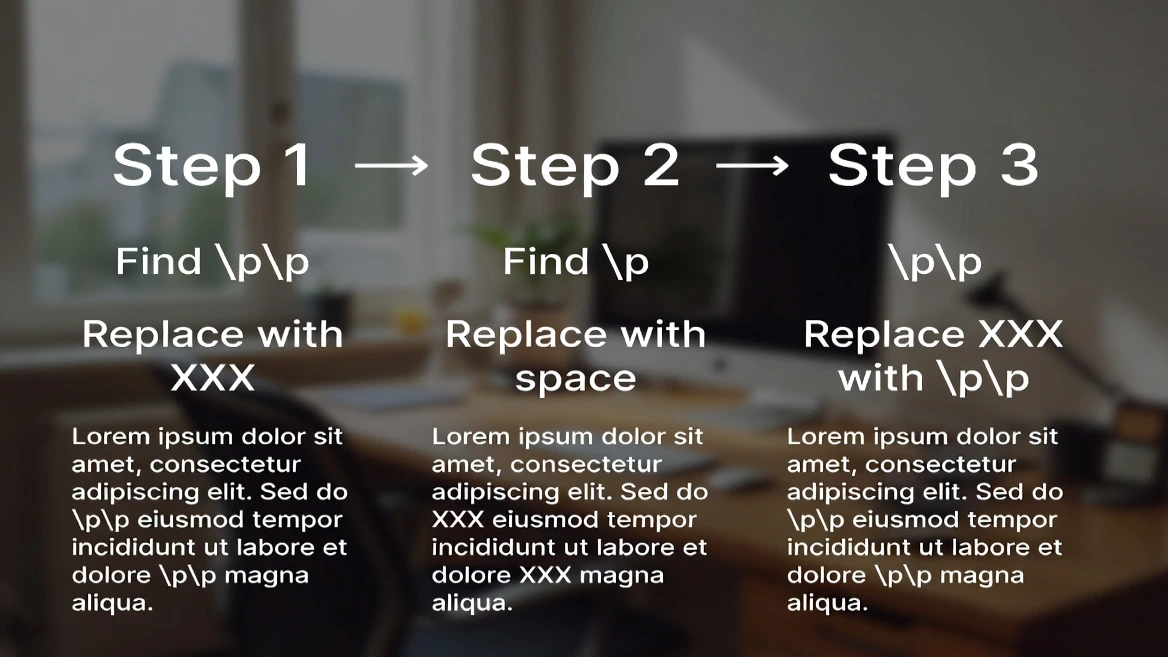
- Replace
^p^pwith a placeholder (XXX). - Replace
^pwith a space or nothing. - Replace
XXXback with^p^p.
This trick keeps intentional double line breaks (paragraphs) while removing single line breaks (the unwanted ones).
Alternative for Online Tools: Most online tools offer a “Preserve paragraphs” or “Keep double line breaks” option—make sure you check this box.
Dealing with Mixed Line Break Types
Problem: Your document has both paragraph breaks (^p) and manual line breaks (^l) mixed together.
Solution Strategy:
- First, turn all the manual line breaks into paragraph breaks:
Find:^l→ Replace:^p - Now that all breaks are paragraph breaks, use the standard removal method:
Find:^p→ Replace: space or nothing - If you need to keep some paragraph structure, use the three-step method described above.
Best Practices and Tips
Choosing the Right Method for Your Workflow
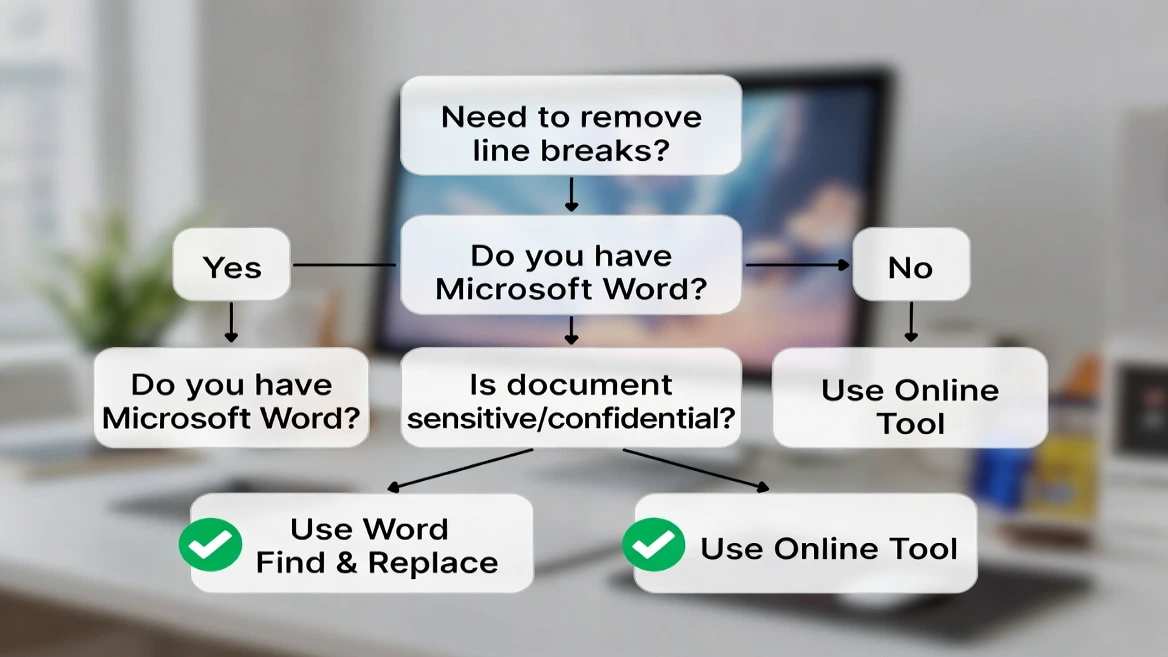
Use Online Tools When:
- You need quick, one-time text cleanup.
- You don't have access to Word (maybe you’re on a public computer).
- You are working on mobile devices.
- The text is simple and doesn't require saving complicated formatting.
- You prefer simplicity over advanced control.
Use Word Find & Replace When:
- You are already working inside a Word document.
- You need to keep complex document formatting safe.
- You need advanced pattern matching or conditional replacement.
- You work offline or with sensitive/confidential documents.
- You frequently fix line break issues and want to create macros.
- You are cleaning up very large documents (50+ pages).
Hybrid Approach:
For the greatest efficiency, you can combine both methods:
- Use online tools for quick email or web text cleanup before you paste it into Word.
- Use Word Find & Replace for final document polishing and handling complex formatting tasks.
Time-Saving Shortcuts and Automation
Keyboard Shortcuts:
- Ctrl+H: Open Find & Replace (Windows)
- Cmd+H: Open Find & Replace (Mac)
- Ctrl+A: Select all text before starting the replacement.
- F5 or Ctrl+G: Go to specific pages to check your results.
Word Macro Automation:
If you often remove line breaks from Word documents, create a macro:
- Record your Find & Replace steps using View > Macros > Record Macro.
- Perform your line break removal steps.
- Stop recording.
- Assign the macro to a keyboard shortcut or button.
Now you can remove line breaks with one single click!
Browser Bookmarklets:
Some users create bookmarklets—small pieces of code saved as bookmarks—that launch their favorite online line break removal tool with one click from their browser toolbar.
Text Expansion Tools:
For Mac users, TextExpander can automatically clean copied text. For Windows, AutoHotkey offers similar functions.
Comparison: Which Should You Use?
Weigh speed, cost, ease, quality, and typical use cases to pick the right option for your workflow.
Frequently Asked Questions
A paragraph break (hard return) is made by pressing Enter and starts a new paragraph with proper spacing. A line break (soft return) is made by pressing Shift+Enter and just moves the text to a new line without starting a new paragraph. In Word, paragraph breaks use ^p and line breaks use ^l.
When you use Find & Replace in Word, type a single space in the "Replace with" box instead of leaving it empty. In online tools, most have an option that says "Replace line breaks with space" or similar.
Yes. Use the three-step method: (1) Replace double paragraph breaks (^p^p) with a temporary placeholder like XXX, (2) Replace single paragraph breaks (^p) with a space or nothing, (3) Replace XXX back with double paragraph breaks (^p^p). Most online tools also have a "Preserve paragraphs" option.
PDFs store text in fixed-position formats rather than flowing text. Each visual line in the PDF becomes a separate line when copied, creating breaks mid-sentence. This is a limitation of the PDF format, not your copy/paste.
Reputable tools are generally safe for non-sensitive text. Many process in your browser or state they don't store data. For confidential content, use Word’s Find & Replace locally.
Yes. Use mobile-friendly tools like TextCleaner, ConvertCase, or PineTools in your phone browser. Alternatively, the Microsoft Word mobile app includes Find & Replace.
The ^p symbol in Word's Find & Replace represents a paragraph mark (hard return). Type caret-p to find/replace paragraph breaks, or pick it from the Special menu.
Conclusion
Getting rid of unwanted line breaks shouldn't be an annoying task that wastes your time. As we've shown in this full guide, you have two amazing solutions: online line break removal tools for fast, convenient text cleanup, and Microsoft Word's Find & Replace feature for powerful, offline document processing.
Quick Recap:
- Use online tools when you need fast results without software, especially on mobile devices or for simple text cleanup.
- Choose Word Find & Replace when you need advanced control, offline work, or are dealing with complex formatted documents.
- Remember the special character codes:
^pfor paragraph breaks and^lfor manual line breaks. - Apply the three-step method to keep paragraph spacing while ditching the unwanted breaks.
Both methods will effectively solve your line break problem—the best choice simply depends on your specific situation, how comfortable you are with technical steps, and your daily workflow.
Take Action Now:
Start with the method that best matches what you need today. Bookmark your favorite online tool for quick access, or practice the Word Find & Replace technique on a test document. Once you master these techniques, you'll save hours of formatting frustration and turn messy copied text into clean, professional documents in seconds.
Whether you’re cleaning up text from PDFs, emails, or websites, you now have the complete toolkit to remove line breaks efficiently and get back to the work that truly matters. Choose your method, follow the easy instructions, and say goodbye to formatting headaches forever!