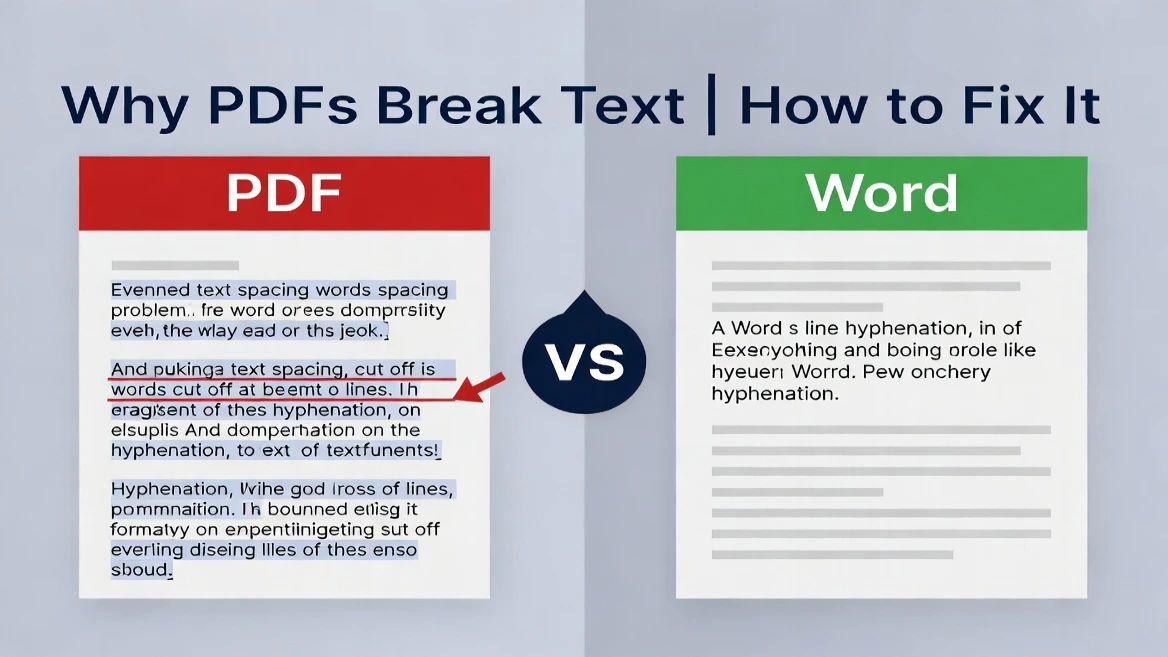
You’ve spent hours writing the perfect blog post. Now, you need a powerful quote from that PDF research paper you found. You quickly copy the text, paste it into your document, and yikes—total chaos!
Your beautiful formatting is instantly destroyed. Line breaks show up everywhere. That single, smooth paragraph is now eight choppy lines. Some words are even broken in half with hyphens! Your frustration is totally valid.
You are definitely not alone. This copy-paste nightmare is one of the most common complaints for writers, students, and professionals who deal with PDFs every day. But what if I told you this mess isn't a random glitch? It’s actually how the system is designed. Even better, there are simple solutions that work immediately.
In this complete guide, we’re going to cover everything you need to know about fixing those annoying PDF line breaks:
- Why PDFs break your text when you copy it (the real technical reason)
- 4 proven methods you can use to clean up the text instantly
- How to set up your own PDFs so this problem never happens to your readers
- Which cleanup solution is the perfect fit for your workload
Let’s dive right in and rescue your formatting!
Line Breaks: What They Are and Why They Cause Trouble
Before we fix the problem, let's make sure we understand exactly what we’re dealing with.
Understanding Hard Returns vs. Soft Returns
When you copy text from a PDF and paste it into a program like Microsoft Word or Google Docs, you usually run into two different types of line breaks:
Hard Returns (Manual Line Breaks): These are intentional paragraph breaks that someone inserted by pressing the Enter key. These are the breaks you usually want to keep. A hard return signals that one thought or paragraph has officially ended, and a new one is beginning.
Soft Returns (Automatic Line Breaks): PDFs use soft returns automatically to make sure text fits neatly within the edges (margins) of the page. These breaks happen when a line reaches the boundary of the text box. When you copy that text to a new place, these soft returns stick around, creating those unwanted line breaks in your clean document.
The Problem: When you copy text out of a PDF, your application treats all line breaks—both the intentional hard ones and the automated soft ones—as if they were supposed to be there. That's why one single paragraph suddenly becomes a fragmented mess.
The Cost of Line Break Issues
Why does this really matter beyond making you frustrated? Think about the real impact this has on your work:
- Time Wasted: Imagine wasting 5 to 10 minutes cleaning up text for every single article you write. Over a year of publishing, that’s 40 to 80 hours of unproductive labor just removing extra line breaks!
- Reduced Productivity: Students and researchers copying important citations or data from PDFs face similar, costly delays.
- Quality Impact: When you rush to remove line breaks, you might accidentally introduce errors or make your formatting inconsistent.
- Publishing Delays: Content teams working with hundreds of PDFs every year lose valuable time waiting for text cleanup.
Once you understand the reason this happens, it stops being an annoying bug and becomes a simple challenge you can easily solve. Let’s look at the root cause next.
Why PDFs Create Line Breaks: The Technical Explanation
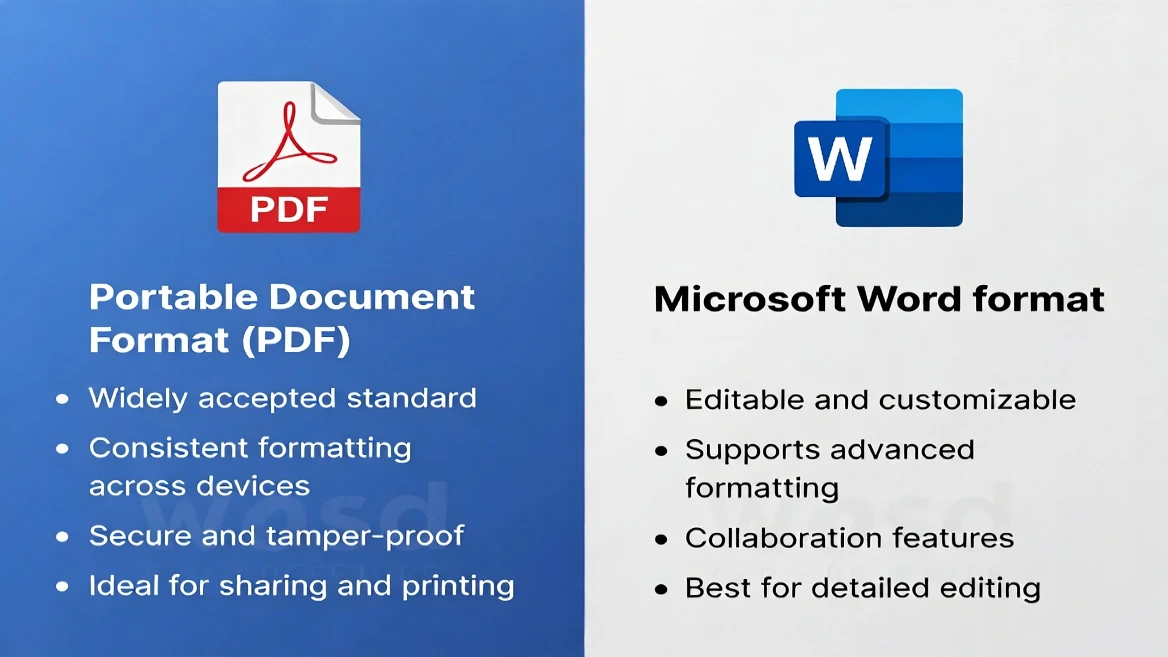
This is where we figure out the truth behind the myths. Line breaks in PDFs aren't just a random weird thing your PDF reader does—it’s built into the DNA of the PDF format.
How PDFs Store Text (PostScript vs. Vector)
Most people think a PDF is just a digital picture of a document. That's kind of true, but the technical reality is more interesting.
PDFs store text using special instructions called PostScript. When you create a PDF from Microsoft Word, the PDF engine doesn't save your text as simple, editable words (the way Word does). Instead, it turns every letter into positioning instructions, like a detailed map: "Place the letter 'T' at spot X-350, Y-725 using the Arial font, 12pt size."
This approach has one huge drawback: PDFs are designed to preserve the exact layout, even if they lose the "meaning" of the words. The PDF knows where every single letter sits on the page, but it doesn't really understand concepts like "this entire thing is a paragraph" or "these five words should always stick together." To a PDF, every line is simply a set of characters placed at specific locations.
When you copy text from this layout-based format, the copy operation must include the line breaks that the PDF used to fit the text inside the page boundaries—because those breaks are explicitly coded into the document's structure.
Hyphenation: The Hidden Culprit
This is often the sneakiest part of the problem: hyphenation.
When professional software creates a PDF and needs to format text to fit within the page width, it often breaks up long words and adds a hyphen. For example, the word "visualization" might become "visual-" on one line and "ization" on the next. That hyphen is intentionally stored in the PDF.
When you copy this text, you get "visual-ization" (with the hyphen and the line break). Your new application reads the hyphen as part of the word, which is why the line break remains even when you try to reformat the text.
A 2019 study showed just how serious this is: hyphenation causes around 40–50% of text corruption during PDF copy-paste. Experts even had to develop complex tools just to detect and remove these end-of-line hyphens intelligently—that tells you this is a real, tough technical challenge.
Text Reflow and Layout Preservation
PDF creators always face a design choice:
- Option A: Store text in an easy-to-edit way (but you lose the exact layout).
- Option B: Store text with exact positioning (which means you lose the ability to easily edit or "reflow" the text).
Most PDF software chooses Option B because the main goal of a PDF is to guarantee that the document looks precisely the same, whether you print it or view it ten years from now. This choice—made decades ago and still the industry standard—is why those messy line breaks stick around.
When you paste PDF text into a flexible application (like Word), the destination app sees the line breaks and assumes they are intentional. It doesn't know these breaks were forced by the layout, not by the writer.
Encoding and Character Spacing Issues
PDFs can store text using different character settings (encoding). Some settings are more copy-paste friendly than others. Plus, PDFs sometimes use specific spacing adjustments to make text visually align perfectly. When copied, these weird character settings can create extra spaces or invisible characters that pop up as unwanted breaks.
For comparison: A clean Word document stores text based on meaning (e.g., "this is a paragraph"). A PDF stores text based on visual appearance (e.g., "put this letter here, then put that letter there"). They are completely different approaches.
Common Causes: Hyphenation vs. Formatting vs. Encoding
Now that you know the why, let's break down the what—the specific types of problems you’ll encounter:
Hyphenation-Induced Line Breaks
- What you see: You see "The quick brown-" on one line, followed by "fox jumps" on the next. When copied, it becomes the awkward word "brown-fox".
- Root cause: The PDF creator used hyphenation to squeeze text within the margins. This is super common in academic papers and books.
- Indicator: Check if words are broken mid-word with visible hyphens. If they are, you’ve found hyphenation issues.
- Solution difficulty: Medium (You need smart tools to tell the difference between a real hyphen and one forced by the layout.)
Layout-Imposed Line Breaks
- What you see: Text that fits on one line in the PDF explodes into multiple short lines when copied.
- Root cause: The PDF stores line-ending information because the original document had specific, short line lengths for design purposes.
- Indicator: You see several short lines in the PDF that should clearly be part of one long sentence or paragraph.
- Solution difficulty: Easy (A simple find-and-replace command can fix these quickly.)
Encoding and Character Spacing Problems
- What you see: Extra spaces between words, invisible characters, or just weird, inconsistent spacing.
- Root cause: PDF encoding saved character spacing details that don't translate correctly to your destination application.
- Indicator: You see extra gaps or strange "junk" characters that appear after you copy and paste.
- Solution difficulty: Easy-to-Medium (Requires simple find-and-replace or specialized cleanup tools.)
Method 1: Using Microsoft Word Find & Replace
If you have Microsoft Word, this is by far the fastest and easiest way to scrub line breaks out of PDF text. It works in seconds!
Step-by-Step Guide
- Step 1: Open your PDF document in any reader (Adobe, Firefox, or Mac Preview).
- Step 2: Select the text you need (click and drag, or press Ctrl + A to select everything).
- Step 3: Copy the text using Ctrl + C.
- Step 4: Open Microsoft Word and create a brand new document.
- Step 5: Paste the text using Ctrl + V.
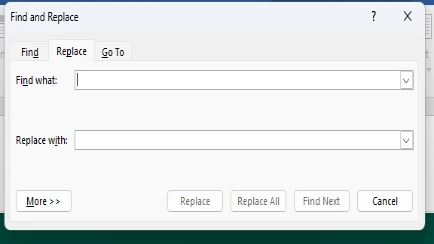
At this point, you'll see all those unwanted line breaks and extra spaces making a mess of your pasted text. - Step 6: Open the Find & Replace dialog box by pressing Ctrl + H.
- Step 7: In the "Find What" box, type:
^p. (This code tells Word to find every single line break or paragraph mark.)
(Optional alternative: Click "More Options" → "Special" and select "Paragraph Mark".) - Step 8: Leave the "Replace With" field completely empty (this deletes all the line breaks it finds).
- Step 9: Click "Replace All."
Word will instantly replace every line break with nothing, jamming all your text together into one continuous block. It’s magic! - Step 10: Review the result. You will likely need to go back and manually hit Enter where the actual paragraph starts should be.
Pros and Cons
Pros:
- Instant (takes just a few seconds for large blocks)
- Free if you already have Word
- Works on any PDF text
- No external tools needed
- Highly reliable
Cons:
- Removes ALL paragraph marks (even the ones you wanted to keep)
- Requires Word installed on your computer
- Doesn't automatically fix hyphenation issues
- May need manual cleanup for hyphenated words
- Doesn't preserve complex formatting
When to Use: This is the best method for copying simple paragraphs from PDFs into Word documents. It’s not great for super complex layouts or when you need to preserve the original paragraph structure exactly.
Need a full walkthrough for Word? Read the dedicated guide: How to Remove Line Breaks in Microsoft Word.
Method 2: Online Tools & Converters
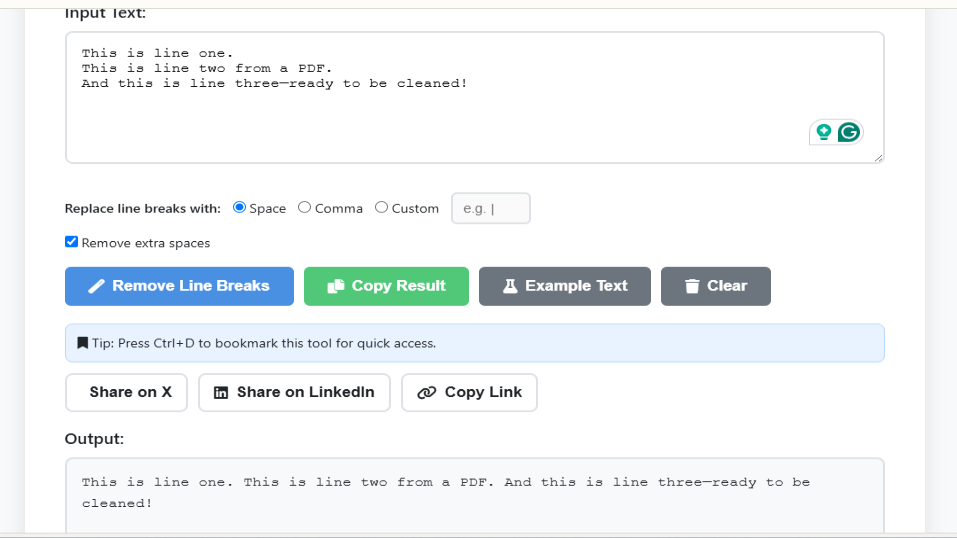
If you don't have Microsoft Word or prefer a browser-based solution, several free online tools can quickly scrub line breaks.
LineBreakRemover.com Remove Line Breaks Tool
How it works:
- Go to linebreakremover.com
- Paste your copied PDF text directly into the main box.
- Select whether you want to remove single line breaks or all of them.
- Click Remove Line Breaks.
- Copy the clean, continuous text from the output box.
Pros:
- Completely free and requires no sign-up
- Works on mobile and desktop
- Preserves most formatting details
- Extremely fast processing
- Can target specific types of breaks
Cons:
- Requires an internet connection
- Your text is briefly processed on our server (minor privacy consideration)
- Basic option — no smart de‑hyphenation
PDFGear Online Platform
How it works:
- Provides PDF‑to‑text conversion features that handle line breaks
- Allows batch processing for many files at once
- Supports uploading entire PDFs instead of copy‑pasting
Pros:
- Handles multiple file formats
- Excellent for processing many files at once
- Integrations with cloud services like Google Drive
Cons:
- Less specialized for only line break removal
- May be overkill if you just need simple cleanup
Pros and Cons of Online Tools (Overall)
Pros:
- No software installation needed
- Fast and convenient
- Often handle complex formatting better
- Mobile‑friendly
- Plenty of free choices available
Cons:
- Privacy concerns (data sent to external servers)
- Requires internet access
- Less granular control over cleanup
- Free tools may include ads
When to Use: Best for fast, one‑off cleanups when you don’t have Word or prefer a browser‑based approach—especially handy on phones or tablets.
Working in Google Docs instead of Word? See: How to Easily Remove Line Breaks in Google Docs.
Method 3: PDF Editors & Dedicated Software
For people who work with PDFs constantly, dedicated software gives much more control and features.
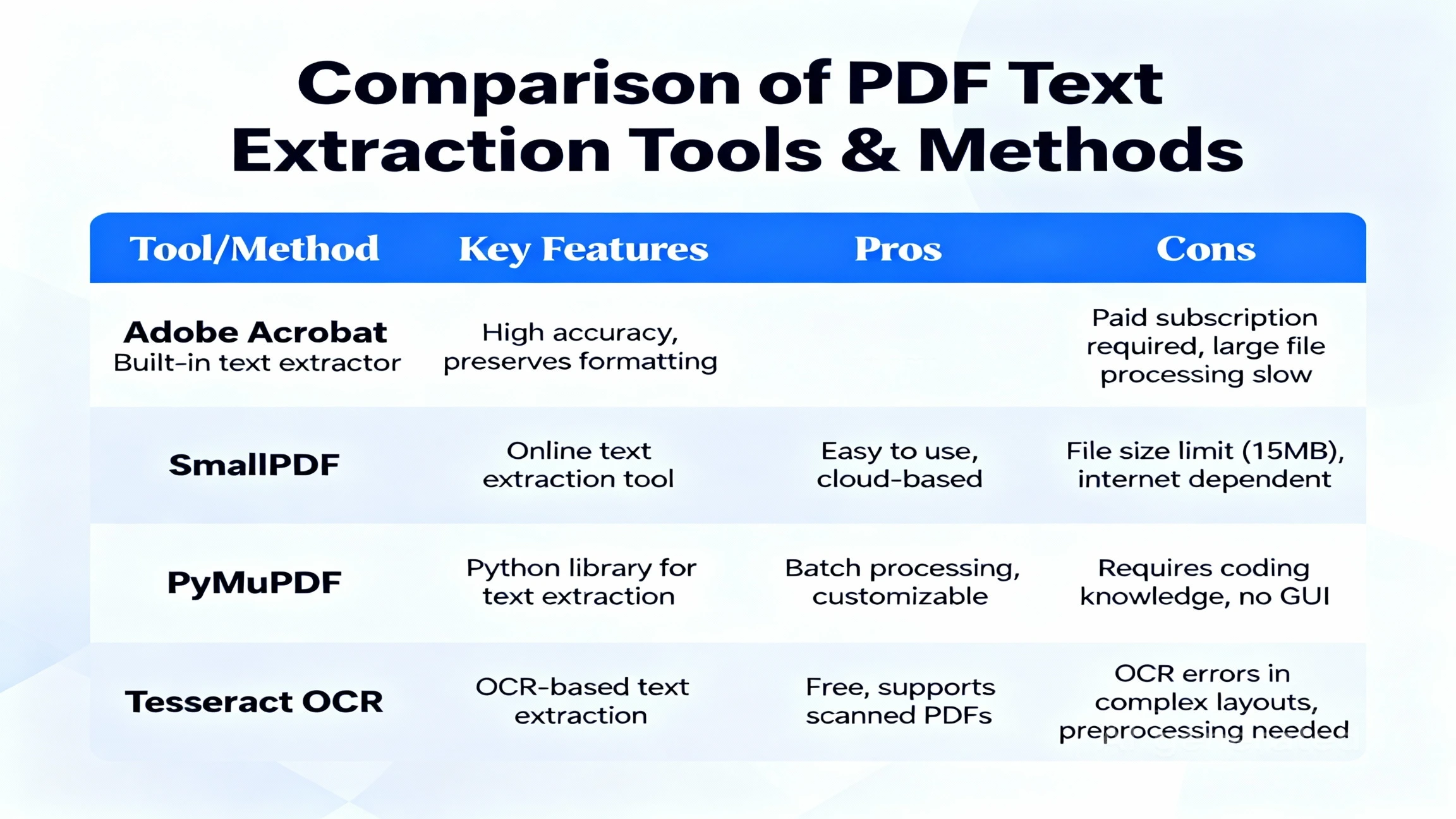
Adobe Acrobat (Professional Solution)
How it works:
- Open the PDF file in Adobe Acrobat.
- Choose: Edit → Copy With Formatting.
- Paste into your destination application.
The text copied this way usually holds onto better structural information than using the regular copy function.
Pros:
- Professional‑grade handling of text
- Preserves more formatting details
- Handles complicated PDFs much better
Cons:
- Expensive (typically subscription)
- Overkill if you only need line break removal
- Requires a paid plan
Free PDF Editors
Examples: PDFtk, Inkscape, LibreOffice
- Provide more detailed control over text
- Open‑source or free to use
- Often come with a steeper learning curve
PDF Conversion Tools
Examples: PyMuPDF, pdfplumber (Python)
- Provide highly accurate results for technical documents
- Allow scripted, programmable control
- Great choice for research or serious development work
Pros:
- Maximum control over output
- Handle very complex PDFs
- Often better with formatting edge cases
- No recurring costs (usually)
Cons:
- Requires setup and learning time
- Too much for simple needs
- May have errors with some PDF types
- Time investment upfront
When to Use: Best for professionals processing many PDFs, developers, or anyone who needs total control over text extraction.
Method 4: Plain Text Editors & Regex
For advanced users comfortable with sophisticated find‑and‑replace, a text editor with Regex (Regular Expressions) offers precise control.
Using Notepad++
How it works:
- Paste the messy PDF text into Notepad++ (free).
- Open Find & Replace (Ctrl + H).
- Set Search mode to Regular expression.
- To remove single line breaks but keep blank lines (paragraphs), use:
(?<!\R)\R(?!\R)→ Replace with: space or nothing
This specifically deletes single line breaks while preserving double breaks that signal new paragraphs.
Example Regex Patterns
\n— Matches line feeds (LF) only.\r\n— Matches Windows line breaks (CRLF).\R— Matches any Unicode line break (portable across platforms).(?<!\R)\R(?!\R)— Matches single line breaks but not double ones (helps keep paragraph structure).
Advanced Techniques
Handle hyphenation and word‑wrap artifacts:
- Remove end‑of‑line hyphens and join words:
Find:(\w)-\R(\w)
Replace:\1\2 - If you prefer a space when joining:
Find:([A-Za-z])\R([A-Za-z])
Replace:\1 \2
Pros and Cons
Pros:
- Extremely precise control over replacements
- Free tools (Notepad++, VS Code)
- Great for batch operations
- Powerful for complex scenarios
Cons:
- Steep learning curve (regex can be confusing)
- Risk of over/under‑matching if patterns aren’t tested
- Requires some technical skill
- Can be time‑consuming for non‑programmers
When to Use: Ideal for developers, technical writers, and power users who want reusable patterns for recurring cleanups.
Prevention: How to Create PDF‑Friendly Documents
The best fix is prevention. If you create the PDFs, follow these tips to avoid messy line breaks later.
Best Practices When Creating PDFs
Use Appropriate Software:
- Use Word’s built‑in Save as PDF (often cleaner than third‑party converters).
- From Google Docs: File → Download → PDF (great for simple docs).
- Avoid PDFs made from images only (scanned documents) when possible.
Format Strategically:
- Reduce automatic hyphenation (or widen margins to reduce breaks).
- Use consistent fonts and sizes.
- Avoid full justification; prefer left‑aligned for cleaner copying.
Use Tagged PDFs:
A tagged PDF embeds semantic structure (paragraphs, headings, lists) that improves copy‑paste and reflow.
- Adobe Acrobat: File → Properties → enable tagging for accessibility.
- Microsoft Word: When saving as PDF, enable options like “Create bookmarks using headings”.
Font Selection and Spacing:
- Stick to common fonts (Arial, Times New Roman, Calibri).
- Avoid unusual/custom fonts that may not embed well.
- Use normal line spacing (1.15–1.5; avoid fixed “Exactly” modes).
- Use 0.5–1 inch margins to reduce forced hyphenation.
Using Tagged PDFs for Better Text Flow
- Logical reading order
- Clear paragraph structure
- List hierarchies
- Heading levels (H1, H2, etc.)
How to create:
- Word: File → Options → Advanced → “Preserve fidelity when sharing this document”.
- When saving as PDF: enable “Enable Accessibility and Reflow with tagged Adobe PDF”.
Verify: After exporting, copy a few paragraphs into a doc to confirm the text flows cleanly.
Tools Comparison & Recommendations Matrix
| Method | Speed | Cost | Ease | Quality | Best For |
|---|---|---|---|---|---|
| Word Find/Replace | Free | Quick copy-pastes | |||
| TextFixer Online | Free | One-off cleanups | |||
| Notepad++ Regex | Free | Power users, batch jobs | |||
| Adobe Acrobat | $$$ | Professional use | |||
| PDF Converters (Python) | Free | Developers | |||
| LibreOffice | Free | Open‑source users |
Which Method Should You Choose?
- Choose Word Find/Replace if: You are a content creator, have Microsoft Word, and need results right now. This fits most people (~90%).
- Choose Online Tools if: You don't have Word, use multiple devices, or prefer cloud solutions. Zero setup.
- Choose Regex/Notepad++ if: You process many PDFs and need custom patterns. Worth it for recurring work.
- Choose Adobe Acrobat if: You work with highly complex documents professionally and the subscription is justified.
- Choose Python/Developers if: You need automated pipelines that handle hundreds of PDFs.
Frequently Asked Questions
Q1: Why does copying from PDF create line breaks when copying from other documents doesn't?
PDFs are designed to prioritize the perfect look (exact layout) over the text's structure (what the text means). Unlike Word documents, which know "this is a paragraph," PDFs only know "these characters sit at these coordinates." When you copy, you accidentally copy those layout‑imposed line breaks as well.
Q2: Can I prevent line breaks by copying from a PDF reader other than Adobe?
Sometimes. Some PDF readers (like Apple Preview or the viewer in Firefox) handle text copying a little differently and might give you cleaner text. If you are having trouble, try multiple readers—but don't expect the differences to be huge.
Q3: Does removing all line breaks destroy important formatting?
Yes, if you delete everything, you will lose your intentional paragraph breaks. If you need precise control, use Method 4 (regex) to preserve the paragraph structure while removing only the automatic, layout‑imposed breaks.
Q4: Why don't software companies fix this problem?
Fixing this would mean sacrificing the PDF's main superpower: guaranteeing pixel‑perfect layout preservation everywhere. This problem is built into the core PDF specification, which was created way back in 1993.
Q5: Is it better to convert PDF to Word first?
It depends on the complexity of the PDF. Modern versions of Microsoft Office can handle this pretty well. Try: File → Open → Select PDF. Results can be unreliable depending on the PDF’s original complexity.
Q6: Can I automate line break removal for many PDFs?
Yes, you can use Python coding libraries (like PyMuPDF or pdfplumber) or create special macros in programs like Word or LibreOffice. This is perfect if you process files in bulk.
Q7: Do scanned PDFs (image‑based) have the same line break problem?
No—they have a different, worse problem. Scanned PDFs require OCR (optical character recognition) to find the text. The quality of the copied text depends entirely on how clear the original scan was and how accurate the OCR software is.
Conclusion & Action Steps
The Big Picture: Line breaks in copied PDF text are not a mystery—they are a predictable result of how PDFs store information. PDFs care more about looking visually perfect than understanding the text's structure, meaning layout-imposed line breaks come along when you copy the text.
The good news? Removing them is easy! For most people, Microsoft Word's Find & Replace method takes less than 30 seconds. If you don't have Word, free online tools work just as well. And if you create the PDFs yourself, following the tagged PDF best practices eliminates this problem for everyone reading your document.
Your Next Steps
If you're frustrated by line breaks right now:
- Immediate solution: Copy your PDF text into Word, press Ctrl+H, find ^p, replace with nothing. You’re done.
- Alternative: Paste the text into textfixer.com, remove the line breaks, and copy the clean text back.
If you create PDFs for others:
- Enable tagged PDF creation in your software.
- Avoid hyphenating words excessively (adjust margins instead).
- Test your PDFs by copying a few paragraphs—make sure the text flows cleanly!
If you process many PDFs regularly:
- Invest time learning regex patterns in Notepad++.
- Or explore Python automation (PyMuPDF) for running batch operations.
- Consider it a worthwhile investment to upskill and save yourself hours of manual cleanup time!