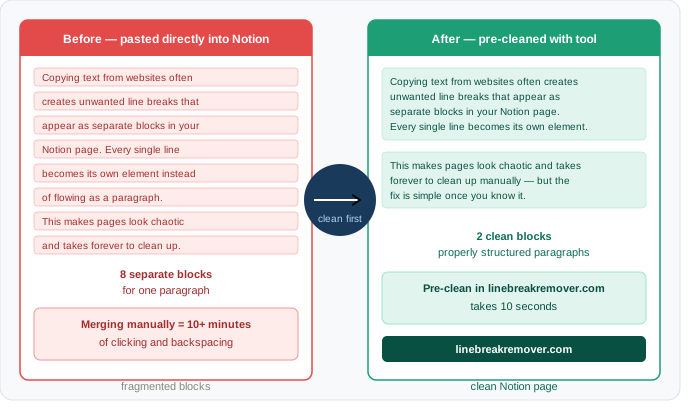
You copy a paragraph from a website, a PDF, or ChatGPT. You paste it into Notion. Instead of one clean paragraph you get twenty separate blocks — one for every line. The page looks like a broken shopping list instead of flowing text.
This is the most common formatting frustration for Notion users in 2025, and it happens to almost everyone who pastes content from outside sources. The reason it feels so much worse in Notion than in Word or Google Docs comes down to something fundamental about how Notion works — and once you understand it, the fix is simple.
What you will learn
Why Notion creates a new block for every line break · 3 methods to fix it · The fastest prevention habit · App-specific tips for ChatGPT, PDF, and web copy pasted into Notion
Why Notion handles line breaks differently from every other app
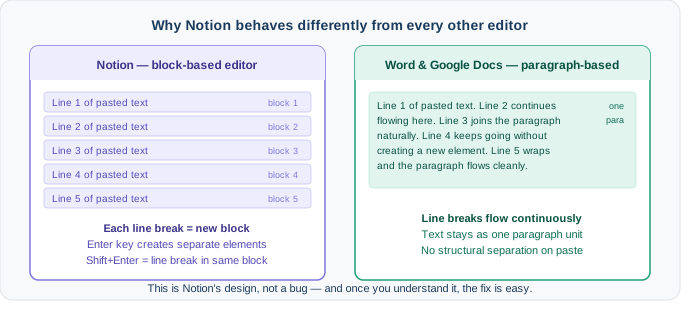
Word and Google Docs are paragraph-based editors. When you paste text with line breaks, they flow it continuously — a line break just moves the cursor down, it does not create a separate structural element.
Notion is a block-based editor. Every element on a Notion page — a paragraph, a heading, a bullet point, a to-do — is a separate block. When Notion reads a line break in pasted text, it treats it as a signal to start a new block. So if your copied text has 15 line breaks, you get 15 separate blocks in Notion.
This is not a bug. It is Notion's core design. The block system is what makes Notion powerful for organising content — but it is exactly what makes pasting from outside sources so frustrating.
The key difference
In Notion, Enter = new block. Shift + Enter = new line within the same block. This single distinction is the foundation of every fix in this guide.
Where the extra line breaks come from
Before choosing a fix, it helps to know what you are pasting from — because each source creates line breaks in a slightly different way.
ChatGPT and AI tools
ChatGPT formats responses using Markdown, which uses double line breaks between paragraphs. When you copy a ChatGPT response, those double breaks come with it. Notion reads each one as a new block boundary, fragmenting every paragraph into multiple separate blocks. This is the most common source of the problem in 2025. For a full explanation and more fixes see our guide on fixing line breaks when copying from ChatGPT.
PDF files
PDFs store text with explicit line break characters at the end of every printed line — not at the end of every sentence. When you copy a paragraph from a PDF, you are copying all those mid-sentence line breaks too. Notion turns each one into a new block, splitting sentences in half across separate elements. Our guide on why PDFs create line breaks when copying explains the technical reason in detail.
Websites and web articles
Web pages use HTML line break tags and paragraph tags that do not translate cleanly when copied. Depending on the site structure, pasting into Notion can create extra blank blocks, inconsistent spacing, or text fragments split at arbitrary points in the sentence.
Microsoft Word and Google Docs
Copying from Word or Google Docs into Notion usually works better than copying from PDFs or websites — but soft returns (Shift+Enter in Word) still create new blocks in Notion, and documents with heavy formatting can produce unpredictable results.
Method 1: Clean the text before pasting (fastest — works every time)
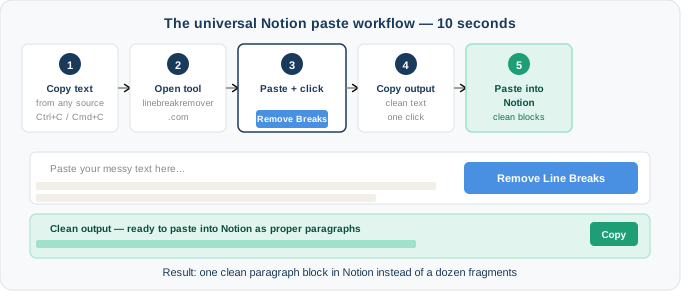
This is the most reliable method and works for every source — ChatGPT, PDFs, websites, emails, Word documents. Clean the text before it ever reaches Notion and the block problem never occurs.
- Copy your text from the source as normal
- Go to linebreakremover.com
- Paste your text into the input box
- Click Remove Line Breaks
- Copy the clean output
- Paste into Notion — text flows as a single paragraph block
Best for
Anyone regularly pasting from ChatGPT, PDFs, or websites into Notion. The ten-second pre-clean step eliminates block fragmentation completely and becomes second nature within a week.
Choosing the right setting in LineBreakRemover.com
The tool gives you options for what to replace line breaks with. For Notion, the right choice depends on your source:
| Source | Recommended setting | Result in Notion |
|---|---|---|
| ChatGPT paragraphs | Remove line breaks, preserve paragraphs | One block per paragraph, clean spacing |
| PDF text | Replace with space | Sentences join correctly, one block total |
| Web article body | Replace with space | Clean flowing text in a single block |
| Bullet lists | Keep line breaks | Paste as Notion bullet blocks intentionally |
Method 2: Use Shift+Enter when typing in Notion
If you are typing directly in Notion rather than pasting, this method prevents line break problems from occurring in the first place.
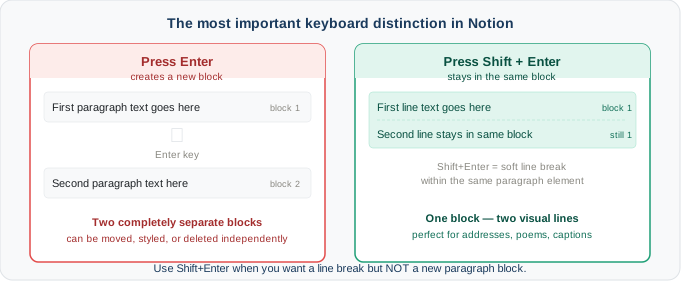
When you press Enter in Notion, you create a new block — a completely separate paragraph element. When you press Shift + Enter, you add a soft line break within the current block, keeping all the text together as one unit.
When to use each
- Press Enter when you genuinely want a new paragraph or a new block — a new section, a new bullet point, a new heading
- Press Shift+Enter when you want visual line spacing within a paragraph — for example, a two-line address, a short poem, or a caption with two lines
Best for
Notion users who type content directly rather than pasting, and anyone creating templates or structured pages where precise block layout matters.
Method 3: Merge existing blocks manually
If you have already pasted text and now have dozens of fragmented blocks, you can merge them back together without starting over.
Merging blocks one at a time
- Click at the very beginning of the second block (before the first character)
- Press Backspace — the block merges upward into the block above it
- Add a space if the two words ran together without a gap
- Repeat for each fragment until the paragraph is whole
Merging multiple blocks faster
- Click the first fragment block
- Hold Shift and click the last fragment block to select all blocks in the range
- Right-click the selection → choose Turn into → Text
- This converts all selected blocks to plain text blocks — then manually merge using the Backspace method above
Honest limitation
Manual merging is practical for 3-5 blocks but becomes tedious very quickly. If you have more than 10 fragments, Method 1 — cleaning the text first and repasting — is almost always faster than merging one by one.
Preventing the problem: the Notion paste workflow
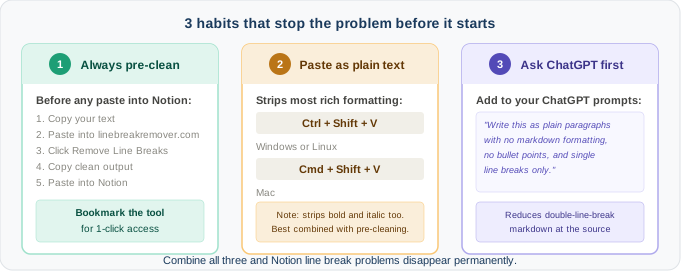
The most efficient approach is building a habit that stops the problem before it starts. Here are three practices that Notion power users adopt.
Habit 1: Always pre-clean before pasting
Make linebreakremover.com your mandatory middle step between copying and pasting into Notion. Bookmark it in your browser. After one week it takes less than ten seconds and becomes automatic — you stop thinking about it the same way you stop thinking about Ctrl+C and Ctrl+V.
Habit 2: Use paste as plain text
Pressing Ctrl+Shift+V (or Cmd+Shift+V on Mac) pastes without rich formatting. This does not eliminate line break blocks in Notion — line breaks still become new blocks — but it strips out bold, italic, colour, and font information that can make pasted blocks look inconsistent. Combine this with pre-cleaning for the best result.
Habit 3: Ask ChatGPT to format for Notion
When generating content with ChatGPT specifically for Notion, add a formatting instruction to your prompt: "Write this as clean plain paragraphs with no markdown formatting, no bullet points, and single line breaks between sections only." ChatGPT will reduce the double-break formatting that causes most of the block fragmentation.
Special cases: Notion databases and inline text
Line breaks in Notion database properties
Text properties in Notion databases behave slightly differently from page content. When you paste multi-line text into a text property field, Notion may strip line breaks entirely or preserve them depending on the field type. For database text fields, pre-cleaning your text before pasting gives the most predictable result regardless of field type.
Line breaks in Notion callout blocks
Callout blocks in Notion support Shift+Enter soft line breaks the same way regular text blocks do. If you paste into a callout and get multiple blocks created inside it, the same pre-clean method applies — clean first, paste once, and you get a single cohesive callout.
Line breaks in Notion table cells
Notion table cells are a known friction point. Pressing Enter inside a table cell creates a new line within the cell (unlike regular blocks where Enter creates a new block). Pasting multi-line text into a table cell usually works better than pasting into a regular page — but line breaks from PDFs can still create unwanted spacing inside cells. Pre-cleaning is still the safest approach.
Frequently asked questions
Why does pasting text into Notion create a new block for every line?
Notion's block-based editor treats every line break as a signal to create a new paragraph block. When you paste text that contains line breaks — from ChatGPT, PDFs, or websites — each line becomes its own block instead of flowing as a single paragraph. This is how Notion is designed, not a bug.
What is the difference between Enter and Shift+Enter in Notion?
In Notion, pressing Enter creates a new block — a completely separate paragraph element. Pressing Shift+Enter creates a soft line break within the current block, keeping all the text together as one unit. This single distinction controls everything about line spacing in Notion.
How do I merge multiple Notion blocks into one?
Click at the start of the second block, then press Backspace to merge it with the block above. Repeat for each block you want to join. For more than five blocks, it is faster to clean the text in LineBreakRemover.com and repaste from scratch.
Does this problem happen when pasting from ChatGPT into Notion?
Yes — this is the most common cause in 2025. ChatGPT output contains double line breaks between paragraphs which Notion reads as separate block signals. Pre-cleaning in LineBreakRemover.com before pasting solves it completely. See our full guide on fixing ChatGPT line breaks for more detail.
Is there a way to paste plain text in Notion?
Yes. Use Ctrl+Shift+V (Windows) or Cmd+Shift+V (Mac) to paste as plain text. This strips most rich formatting, but line break characters are still interpreted as new blocks — so pre-cleaning the text first gives better results.
Why does Notion behave differently from Google Docs and Word?
Google Docs and Word are paragraph-based editors — they flow text continuously. Notion is a block-based editor — every element is a separate structural unit. This fundamental difference means every line break in pasted text creates a visible new block in Notion, which simply does not happen in traditional word processors. For Google Docs-specific fixes, see our guide on removing line breaks in Google Docs.
Conclusion: make pre-cleaning your default Notion habit
Notion's block system is what makes it powerful — but it is also what makes pasting from outside sources frustrating until you build the right habit. The block-per-line-break behaviour will not change because it is fundamental to how Notion works.
The fix that works in every situation, for every source, without any technical knowledge is simple: copy your text, clean it in linebreakremover.com, then paste into Notion. That ten-second step is the difference between a clean page and twenty minutes of manually merging blocks.
Build that habit this week and Notion's line break problem disappears permanently.