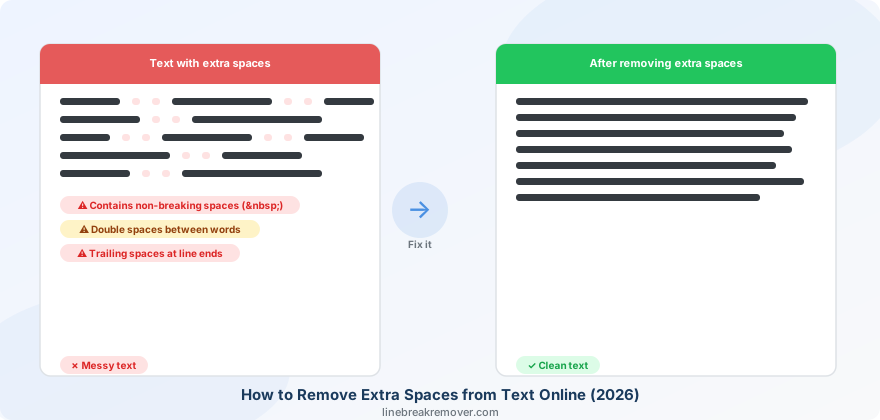
You paste text from a PDF, a Word document, or a website — and instead of clean, even spacing you get double spaces between words, huge gaps in the middle of sentences, or trailing spaces that break your formatting. Sometimes the spaces look normal but behave strangely, refusing to collapse or causing alignment issues in spreadsheets and databases.
Extra spaces are one of the most common text formatting problems in 2026, and they come from more places than most people realise. This guide covers every type of extra space, where each one comes from, and the fastest way to remove all of them — with or without specialist software.
What you will learn
The 4 types of extra spaces and what causes each one · 5 methods to remove them ranked by speed · How to handle invisible non-breaking spaces · Fixes for Word, Google Docs, Excel, and online tools · The one setting that prevents extra spaces when you paste
The 4 types of extra spaces — and where they come from
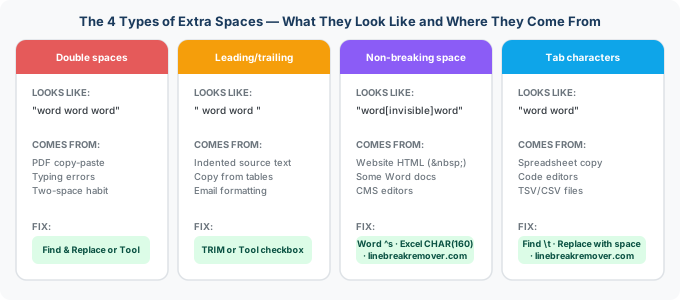
Before choosing a fix it helps to know which type of extra space you are dealing with, because each has a different cause and sometimes requires a different approach.
Double (or multiple) spaces between words
The most common type. These appear after copying from PDFs — because PDFs store text using absolute character coordinates rather than standard space characters, and the PDF reader reconstructs spaces by estimating gaps between characters. Justified or multi-column PDF layouts are especially prone to producing double or triple spaces between words when copied. Typing errors and old-school two-space-after-period habits also contribute.
Leading and trailing spaces
Leading spaces appear at the start of a line (often from indentation in the source document). Trailing spaces sit invisibly at the end of a line after the last visible character. Both cause problems in spreadsheets, databases, and code — a cell that looks empty might contain spaces, and a string comparison that should match will fail because of a trailing space you cannot see.
Non-breaking spaces ( )
These are a special HTML character ( ) used on websites to prevent text from wrapping at a specific point. They look identical to regular spaces on screen but behave completely differently — they do not collapse with adjacent spaces, they are not caught by standard Find & Replace for a space character, and they can cause invisible alignment problems in documents and databases. They paste invisibly when you copy text from websites.
Tab characters disguised as spaces
Tab characters (\t) expand into large gaps in word processors and emails but are invisible in plain text. Copying from spreadsheets, code editors, or poorly formatted documents often brings tab characters that look like multiple spaces in the destination app.
The invisible problem
Non-breaking spaces and tab characters are both invisible to the naked eye. If your extra spaces do not respond to normal Find & Replace, one of these is almost certainly the cause.
Method 1: Use LineBreakRemover.com (fastest — one click)
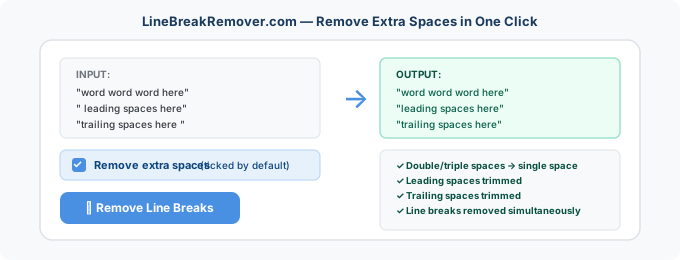
LineBreakRemover.com has a built-in Remove extra spaces checkbox that is ticked by default. When active, it collapses all multiple consecutive spaces into a single space and trims leading and trailing spaces — in the same step as removing line breaks. This means you can fix both problems in a single paste-click-copy workflow.
- Copy your text from the source (PDF, website, document).
- Open linebreakremover.com and paste into the input box.
- Make sure Remove extra spaces is checked (it is by default).
- Click Remove Line Breaks.
- Copy the clean output and paste into your destination.
Best for
Anyone pasting from PDFs, websites, or ChatGPT where extra spaces and line breaks appear together. Fixing both in one step saves time and works on desktop and mobile. No sign-up, no install, free forever.
Method 2: Find and Replace in Microsoft Word
If you are already working in Word, Find and Replace handles most extra space problems without leaving the app.
Removing double spaces
- Press Ctrl + H to open Find and Replace.
- In Find What, type two spaces.
- In Replace With, type one space.
- Click Replace All.
- Repeat until Word reports 0 replacements — the first pass converts triple spaces to doubles, so a second pass is needed.
Removing non-breaking spaces
- Press Ctrl + H.
- In Find What, type
^s(this is Word's code for a non-breaking space). - In Replace With, type a regular space.
- Click Replace All.
Removing leading and trailing spaces
- Press Ctrl + H and click More to expand options.
- Check Use wildcards.
- In Find What, type
^13 +(space after a paragraph mark — catches trailing spaces). - In Replace With, type
^13(paragraph mark only). - Click Replace All.
Best for
Users already inside a Word document who need to clean up text that was pasted with extra spaces. Run all three Find & Replace passes in sequence for a thorough clean.
Method 3: Remove extra spaces in Google Docs
Google Docs has a built-in option that handles the most common spacing problems in one click.
- Select all the text you want to clean (Ctrl + A).
- Go to the Format menu.
- Select Text → Remove extra spaces.
- Google Docs collapses all multiple spaces into single spaces throughout the selection.
For non-breaking spaces in Google Docs, use Find and Replace (Ctrl + H) with Regular expressions enabled. Search for \xA0 (the Unicode code for non-breaking space) and replace with a regular space.
Best for
Google Docs users who want a fast built-in fix without switching to another tool. The Format → Text → Remove extra spaces option takes two clicks and works on the full document or any selection.
Method 4: Use TRIM in Excel or Google Sheets
Spreadsheet users have the most powerful built-in space remover of all — the TRIM function, which removes leading spaces, trailing spaces, and collapses multiple spaces between words into one, all in a single formula.
- Click an empty cell next to the cell containing messy text (e.g., if your text is in A1, click B1).
- Type
=TRIM(A1)and press Enter. - The clean text appears in B1.
- To replace the original with clean text: copy B1, right-click A1, choose Paste Special → Values Only, then delete column B.
For non-breaking spaces in Excel, combine TRIM with SUBSTITUTE: =TRIM(SUBSTITUTE(A1,CHAR(160)," ")). This replaces non-breaking spaces (character 160) with regular spaces before trimming.
Best for
Anyone cleaning large amounts of data in spreadsheets — TRIM can be applied to an entire column at once, cleaning hundreds of cells in seconds. The SUBSTITUTE+TRIM combination handles non-breaking spaces that TRIM alone would miss.
Method 5: Paste as plain text first
If extra spaces consistently appear when you paste from a specific source, changing how you paste is the most efficient prevention strategy. Pasting as plain text strips most of the hidden formatting characters — including many of the non-breaking spaces and tab characters — before they ever reach your document.
- Most apps (Windows/Mac): Ctrl + Shift + V or Cmd + Shift + V
- Microsoft Word: Right-click → Paste Special → Unformatted Text
- Google Docs: Ctrl + Shift + V
- Notion: Ctrl + Shift + V
Limitation
Paste as plain text removes formatting but does not always catch non-breaking spaces or double spaces from PDFs. If extra spaces persist after plain-text paste, combine this method with Method 1 — pre-clean at linebreakremover.com first, then paste.
Which method should you use?
| Your situation | Best method |
|---|---|
| Extra spaces from a PDF, website, or ChatGPT | Method 1 — LineBreakRemover.com (fixes spaces and line breaks together) |
| Already in a Word document | Method 2 — Find & Replace (Ctrl+H) |
| Already in Google Docs | Method 3 — Format → Text → Remove extra spaces |
| Cleaning data in Excel or Google Sheets | Method 4 — TRIM formula (or SUBSTITUTE+TRIM for non-breaking spaces) |
| Preventing extra spaces before they appear | Method 5 — Paste as plain text (Ctrl+Shift+V) |
| Non-breaking spaces specifically | Method 1, or Word's Find & Replace with ^s, or Excel's CHAR(160) |
| On mobile (iOS or Android) | Method 1 — linebreakremover.com in mobile browser |
Frequently asked questions
What causes extra spaces in text?
Extra spaces come from several sources: PDF files use multiple spaces to simulate visual alignment because they store text using absolute character positioning; websites embed non-breaking spaces ( ) in HTML that paste invisibly; typing errors introduce double spaces; and copying from Word or Google Docs can carry over tab characters or formatting spaces that look like regular spaces but behave differently.
What is a non-breaking space and how do I remove it?
A non-breaking space is a special character that looks like a regular space but prevents text from wrapping at that point. It resists normal deletion and is not caught by standard Find & Replace for a space character. To remove it: in Word use Ctrl + H and search for ^s; in Excel use =SUBSTITUTE(A1,CHAR(160)," "); or paste your text into linebreakremover.com which strips them automatically.
How do I remove double spaces in Word?
Press Ctrl + H, type two spaces in Find What, one space in Replace With, and click Replace All. Run it twice — the first pass converts triple spaces to doubles, the second pass cleans those up. For non-breaking spaces, search for ^s instead.
How do I remove extra spaces in Google Docs?
Select your text, then go to Format → Text → Remove extra spaces. This collapses multiple spaces to one throughout the selection in a single click. For non-breaking spaces, use Find and Replace (Ctrl + H) with Regular expressions enabled and search for \xA0.
Does LineBreakRemover.com also remove extra spaces?
Yes. The tool has a Remove extra spaces option that is checked by default. When enabled, it collapses all multiple consecutive spaces into a single space and trims leading and trailing spaces — in the same step as removing line breaks. It is the fastest way to fix both problems simultaneously.
Why do extra spaces appear after copying from a PDF?
PDFs store text using absolute character positions rather than standard space characters. When you copy text, the PDF reader reconstructs spaces by estimating the gaps between characters — a process that is imperfect, especially in justified or multi-column layouts. The result is often double or triple spaces between words that were single-spaced in the original document.
Conclusion: fix spaces and line breaks in one step
Extra spaces and broken line breaks almost always appear together — because they come from the same sources: PDFs, websites, and AI tools that format text for visual layout rather than clean copy-paste. Fixing them separately with different tools doubles your effort.
The fastest habit is a single pre-clean step at linebreakremover.com before pasting anywhere. With Remove extra spaces checked by default, one click cleans both problems at once — leaving text that is ready to paste into any app, document, or database without any follow-up formatting work. For related guides, see how to clean up text copied from a website and why PDFs create line breaks when copying.