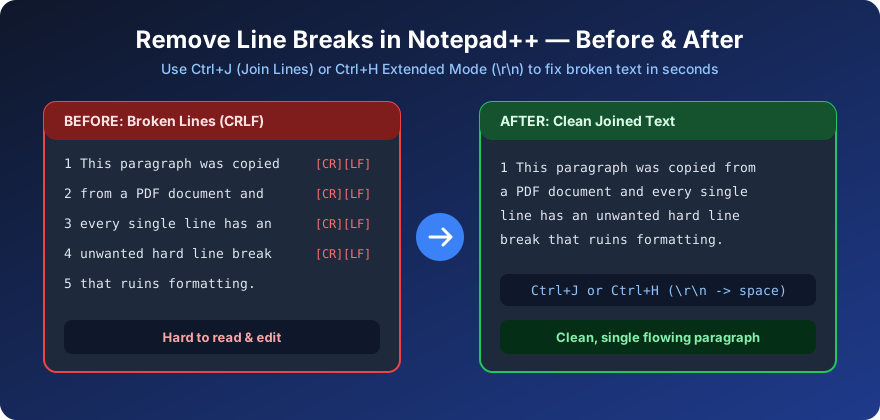
If you pasted text from a PDF, log file, SQL query, or web page into Notepad++ and every sentence is broken onto its own line, you can fix the entire file in seconds.
In this guide, you will learn the 4 fastest ways to remove line breaks in Notepad++ — from a single keyboard shortcut (Ctrl+J) to regex Find & Replace and a zero-setup browser alternative.
What you will learn
Fastest shortcut (Ctrl+J) · Extended Mode Find & Replace (\r\n) · Cross-platform Regex ([\r\n]+) · Removing only blank lines · 1-click browser cleaner
Which Notepad++ Method Should You Use?
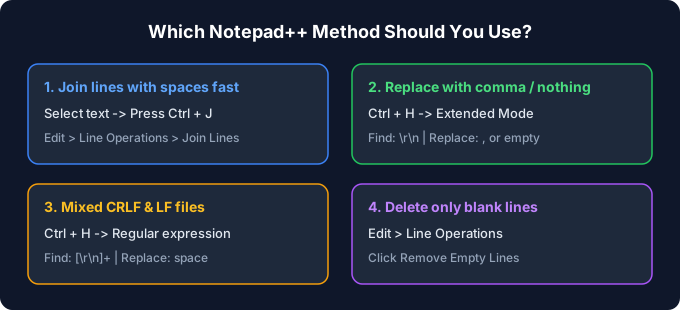
Method 1: Join Lines Shortcut (Ctrl + J) — Fastest
If you just want to merge selected lines into a single clean paragraph separated by spaces, Notepad++ has a built-in command:
- Select the lines you want to merge (or press
Ctrl + Ato select the whole file). - Press
Ctrl + J(or go to Edit → Line Operations → Join Lines).
Notepad++ immediately removes the line breaks and joins every line with a single space.
Method 2: Find & Replace in Extended Mode (\r\n)
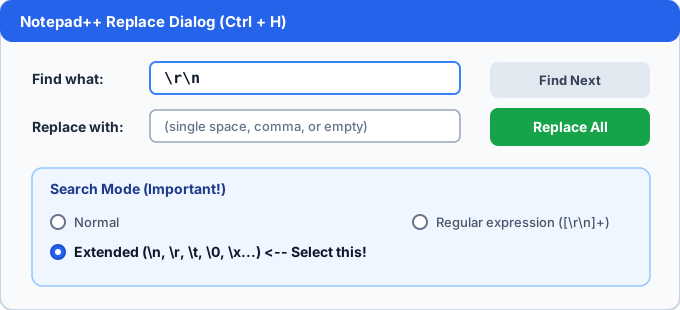
When you want to replace line breaks with a comma, a custom delimiter, or nothing at all (e.g., joining wrapped SQL strings or base64 text):
- Press
Ctrl + Hto open the Replace dialog. - Under Search Mode (bottom-left), select Extended (\n, \r, \t, \0, \x...).
- In Find what, type
\r\n(for Windows CRLF files) or\n(for Unix/Linux LF files). - In Replace with, type a single space
,, or leave it blank. - Click Replace All.
Tip: Not sure whether your file uses \r\n or \n? Click the ¶ (Show All Characters) icon in the Notepad++ toolbar to see whether lines end with CR LF or just LF.
Method 3: Remove Line Breaks with Regex (Cross-Platform)
If your text mixes Windows (\r\n), Mac (\r), and Linux (\n) line endings, Regular Expression mode handles all of them in one pass:
- Press
Ctrl + H. - Select Regular expression under Search Mode.
- In Find what, enter:
[\r\n]+ - In Replace with, enter a single space
- Click Replace All.
Method 4: Remove Only Empty / Blank Lines
If you want to keep your paragraphs intact and only delete blank lines between them, do not use Find & Replace. Instead:
- Go to Edit → Line Operations → Remove Empty Lines.
- If some blank lines contain hidden spaces or tabs, choose Edit → Line Operations → Remove Empty Lines (Containing Blank characters).
Bonus: Quick Browser Alternative (No Install Needed)
If you are on a locked work computer, mobile device, or just want to clean up text copied from ChatGPT, PDFs, or Google Docs without opening a desktop editor:
- Use our free Online Line Break Remover to replace breaks with spaces, commas, or custom characters.
- Use our ChatGPT Text Formatter if you also need to strip Markdown (
**,###) at the same time.
Frequently Asked Questions
Q1: What is the fastest shortcut to remove line breaks in Notepad++?
A: Select your text and press Ctrl + J (Edit → Line Operations → Join Lines). It merges all selected lines into one line with single spaces.
Q2: How do I remove all line breaks using Find and Replace in Notepad++?
A: Press Ctrl + H, choose Extended Search Mode, put \r\n in Find what, put your replacement (like a space or comma) in Replace with, and click Replace All.
Q3: Why didn't \n work in Notepad++ Find and Replace?
A: Windows files use \r\n (CRLF) rather than \n alone, and Search Mode must be set to Extended or Regular expression (not Normal).
Q4: How do I remove only empty or blank lines in Notepad++?
A: Click Edit → Line Operations → Remove Empty Lines (or Remove Empty Lines (Containing Blank characters)) to delete blank lines without merging paragraphs.